Gemini Notebook, formerly NotebookLM, is my favorite tool for lesson planning. A new feature in Gemini Notebook allows you to simply ask for the resources you need to accompany your lesson.
If you already know how to use Gemini Notebook, scroll down to the section on this new feature.
Your first step when creating a Gemini Notebook is to add sources. Notebook is grounded in your sources to help you ensure your AI assistant is working for you.
Documents for Lesson Planning
When lesson planning, what resources need to influence your planning?
State standards
District calendar
Curriculum outline
Curriculum resources
Websites with trusted philosophies
Research articles
Professional Learning documents
Tip: Create a Google Doc for Yourself
Google Docs that you add to your Gemini Notebook sync. Start a Google Doc where you describe your teaching style. Continue to add to the Google Doc as you reflect on your teaching or have goals you want to include in your lesson planning
I create a base notebook that I can use for almost any purpose. My standards, teacher handbook, department policies, research articles are important for anything I create for my different educator tasks.
In the notebook is a COPY button in the top right.
If you’re teaching different classes, make a copy for each class. For example, an Algebra, Geometry, Algebra II notebook. If you teach elementary school, you may choose to create a copy for each subject you are teaching.
Add Notebook Specific Resources
Once you make a copy, add resources that are specific to that notebook purpose. For example, math curriculum for the math level.
Use the Gemini Chat
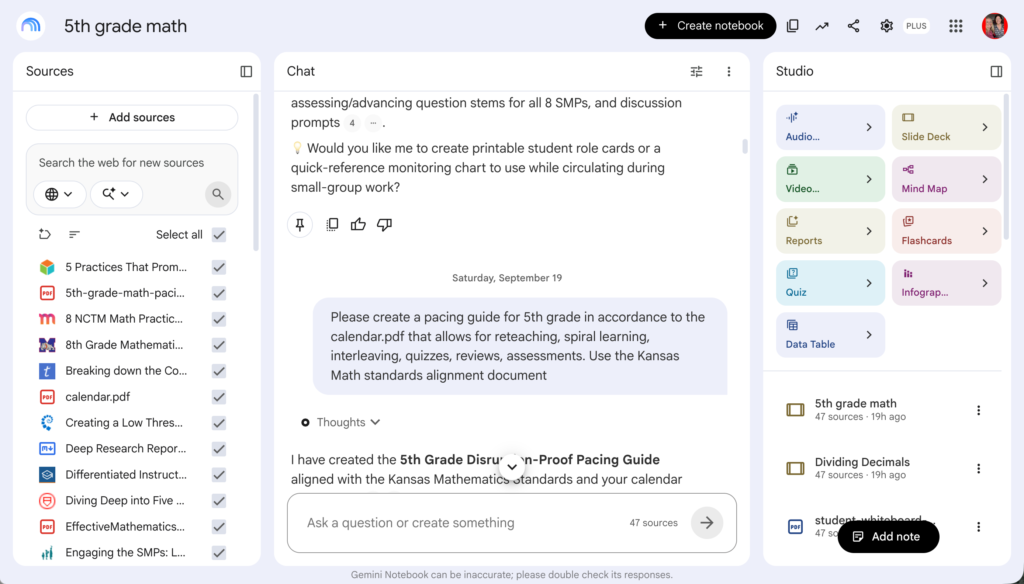
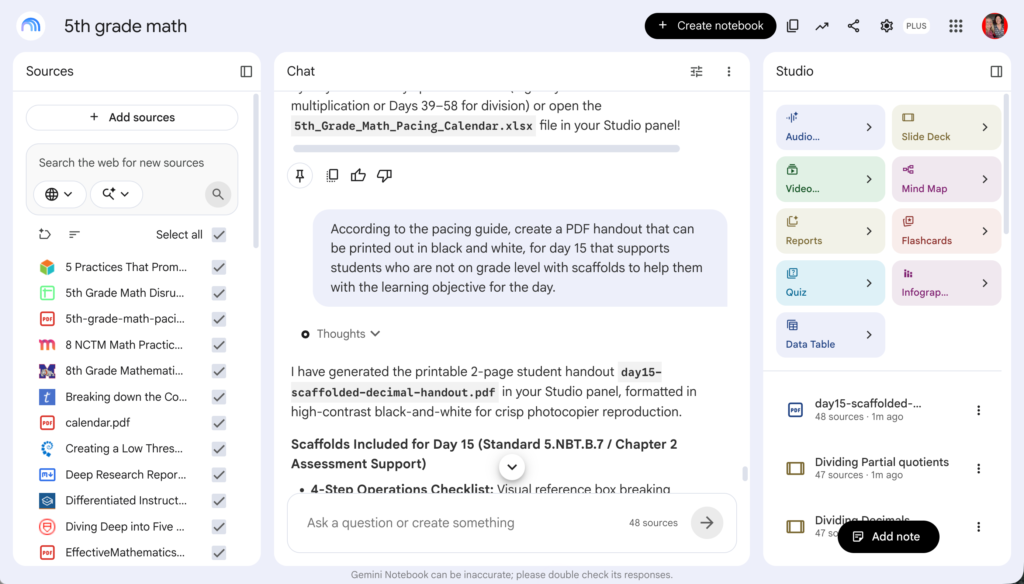
In the center of Gemini Notebook is a chat space.
The chat is private to you.
If you share your notebook, your chat questions are not visible to your collaborators.
Create a Pacing Guide
“Using the calendar.pdf and the topic_outline spreadsheet and the standards.pdf documents, create a pacing calendar of what I will teach each day. Include time for quizzes, reteaching, interleaving, and assessments. “
Gemini Studio
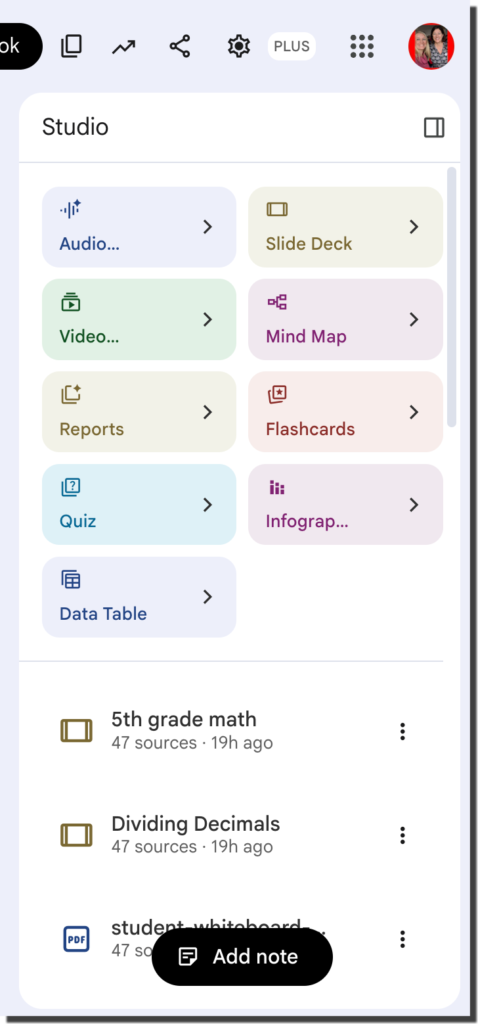
On the right side of the notebook is the Studio. This has a variety of buttons to help you to create resources. Click on the buttons to create slides, a podcast (Audio overview), a quiz, infographic, etc…
Focus Your Resources
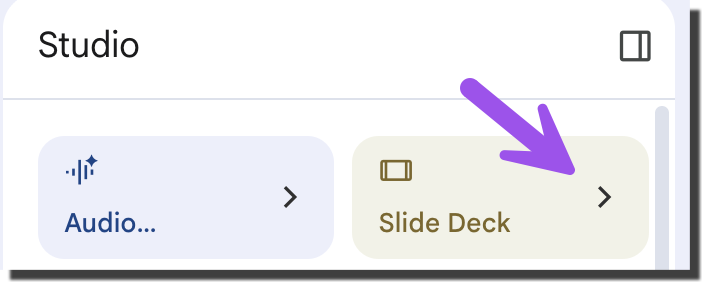
On the Studio buttons notice there is a arrow. This allows you to provide directions for how you want the final product. You can also choose to output in a different language, which can be used to differentiate materials for students who need language support.
Reduce Notebook Sources
In addition to describing what kind of resource you want created, the resource may need to be based on a particular source or subset of sources. On the left side, uncheck sources that would not contribute to the resource you are trying to create.
For example, if you want to create a podcast explaining a particular concept to students you do not need the teacher handbook as part of the source information. Uncheck any resources that are not needed for the resource creation.
New Feature - Ask for Resources
You can now bypass the Studio buttons altogether. More and more, I find myself simply asking for resources in the chat.
“Using the school graphics description, create a slide deck for day 15 according to the pacing guide.”
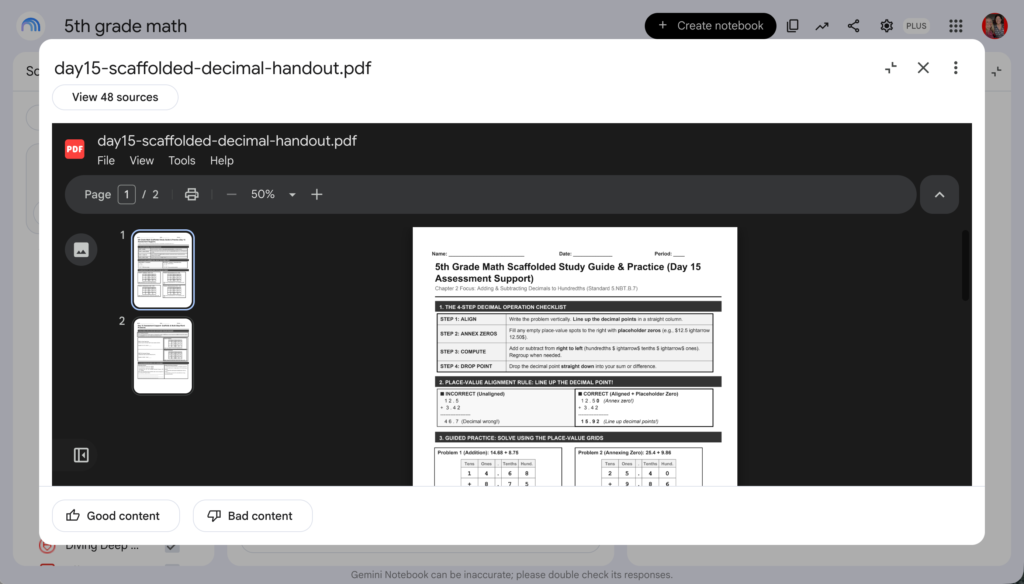
If you want a PDF, a report, a table, a slide deck, an infographic, an audio overview, etc… you can simply ask for it from the chat. I like this because it makes it easier to prompt for specific information and to simultaneously create the desired resource.
“According to the pacing guide, create a PDF handout that can be printed out in black and white, for day 15 that supports students who are not on grade level with scaffolds to help them with the learning objective for the day.”
Differentiating Resources
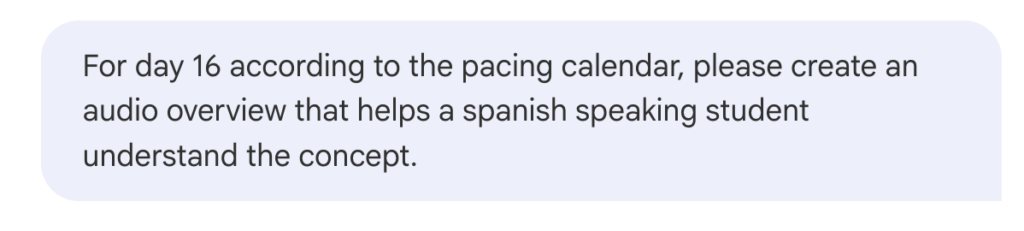
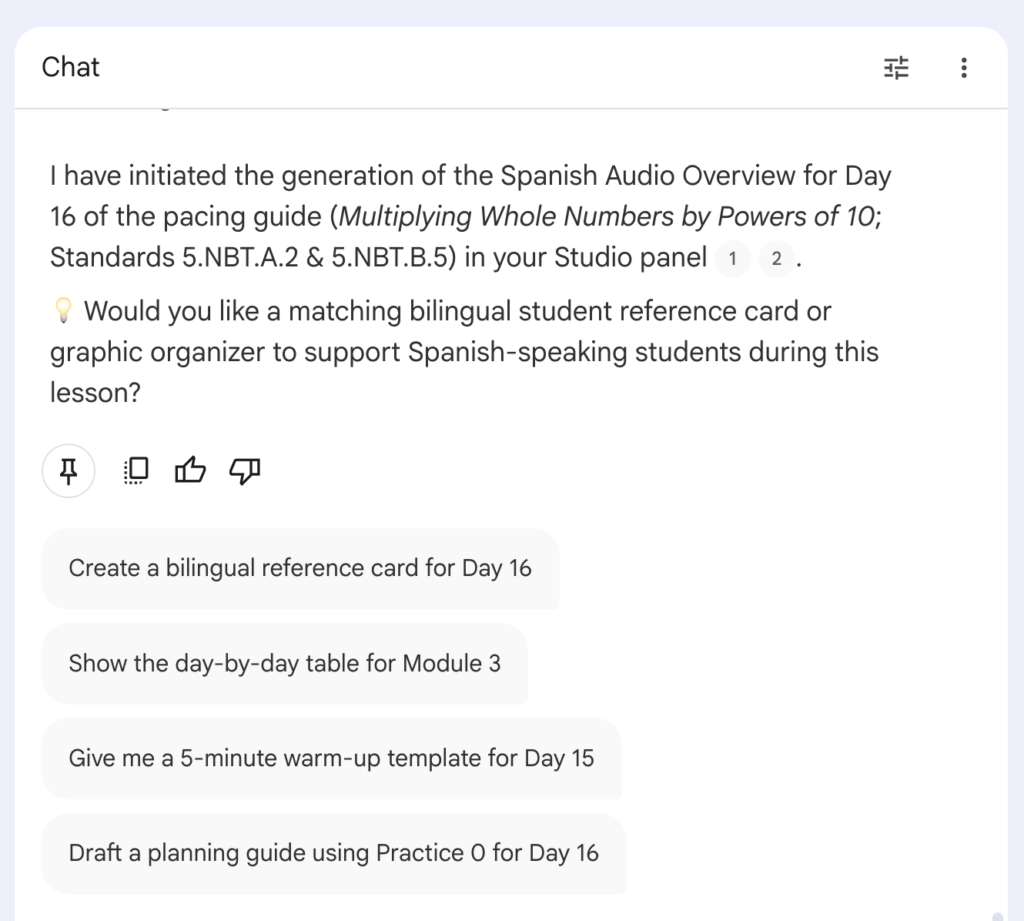
Ask for an Audio Overview (podcast) or a video that is tailored to support students who need differentiated resources. Simply describe the output you want in the chat description.
Gemini Notebook Wants to Help with Additional Resources
After asking for a differentiated audio overview, Gemini Notebook automatically offers me additional resources. In this case, a bilingual reference card for the next day on the pacing guide, a day by day table for the next module, a 5 minute warm up for the day, or a planning guide for the next day. Simply tap on the suggested resources to quickly generate.
If You Can Dream It, Ask for It
What document or resource do you wish you had for tomorrow’s lesson? Ask for it in the Gemini Notebook Chat. Tip: Reference the titles of resources in your chat request.
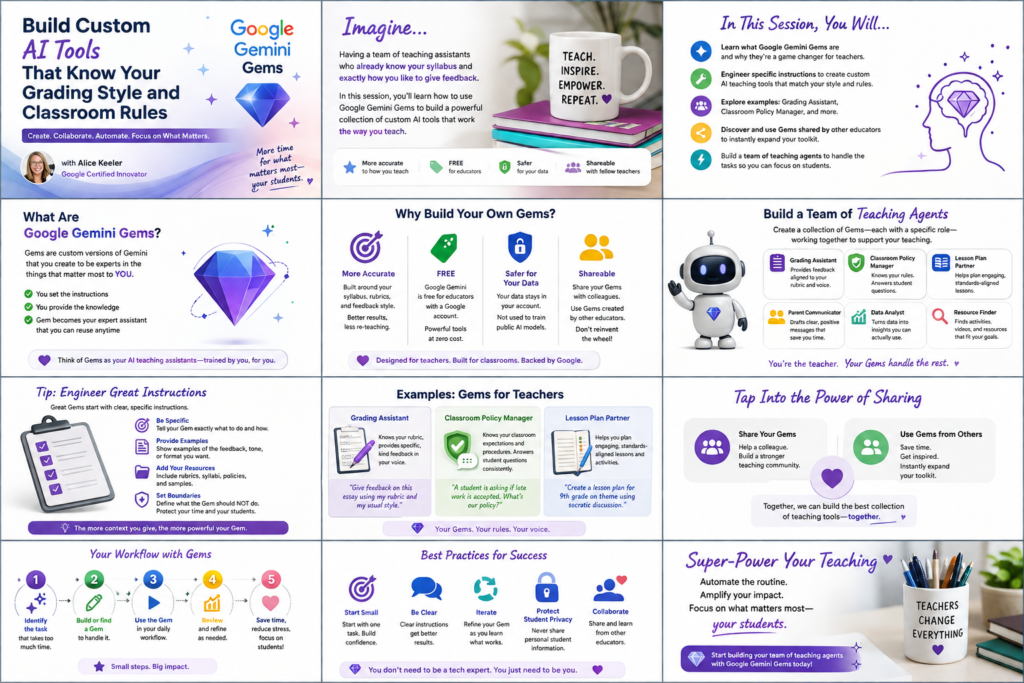
Join Alice Keeler for this session for teaching with AI
Imagine having a team of teaching assistants who already know your syllabus and exactly how you like to give feedback. Join Google Certified Innovator Alice Keeler to learn how to use Google Gems to build a powerful collection of custom AI tools. We will explore how to engineer specific instructions so you can create a Grading Assistant or a Classroom Policy Manager that works for you. You will also learn how to leverage Gems shared by other educators to instantly expand your toolkit. This session is about super-powering your teaching by automating the routine tasks so you can focus on the students.
Exit this pop up by pressing escape or clicking anywhere off the pop up.