



[tweet]I do not use Google Slides to give information, I use it to GET information.[/tweet]
Google Slides is one of my favorite collaboration creativity tools. Think outside the box to go beyond presentations. Here are 5 keyboard shortcuts that are sure to increase productivity.
1) Control Shift Up Arrow
I use this EVERY DAY! Control Shift Up Arrow sends an object on the slide UP to the top. (Note this works on Jamboard also). Control Up Arrow sends it one layer up. The addition of the Shift key sends it all the way up.
2) Tab
All the time I have an object behind and object and I can not select it. The secret is to use the Tab key to cycle between objects. Single click on anything on the slide and use the TAB key to go to the next object. Tip: Hold down the Shift key and press Tab to cycle backwards. Once you have selected the object you want use Control Shift Up Arrow to bring it to the top.
3) Control M
This adds a new slide! So much faster than using your mouse to go over to the plus icon up in the toolbar.

4) Control Drag
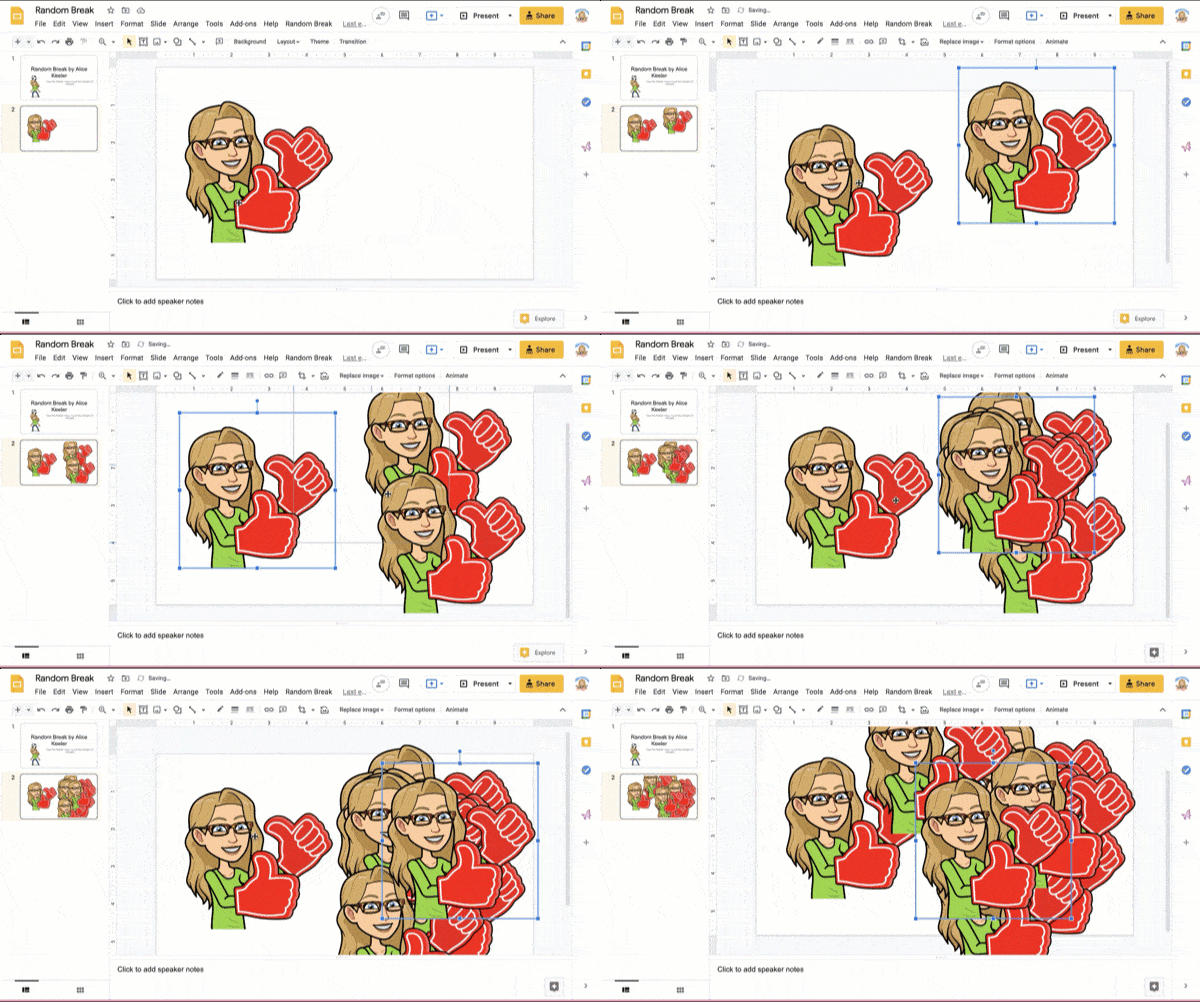
The more objects you have in a Slides the slower it will load and possibly lag while using it. One trick when using slides is to have an “infinite” pile of manipulatives. However, if you have a lot of these it can be problematic. Instead, teach the kids to hold down the Control key and use the mouse to pull from a pile. This will automatically duplicate the item. (Or you can use Control D to duplicate.)
5) Filmstrip – Control Shift Up Arrow
The filmstrip is located on the left hand side with a thumbnail of each slide. (While you can use Ctrl + Alt + Shift + f to focus the filmstrip it’s seriously faster to click on one of the thumbnails on the left). Select a thumbnail on the left. Use Control Shift Up Arrow to move the slide to the top of the filmstrip.