Create a Branching Google Form
Design your Google Forms to provide immediate feedback by utilizing branching options. Create multiple sections in your Form and add only one question per section that determines which section to jump to next. Answer correctly and the branching should take the student to the next question. Answer incorrectly and be taken to a section with a tutorial or hint and a chance to answer a new question. See below for a template to set this up faster.
Creating Branches
Create a Google Form and create 2 sections for each question. Name each section to make navigation easier to set.
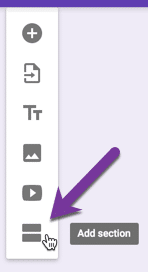
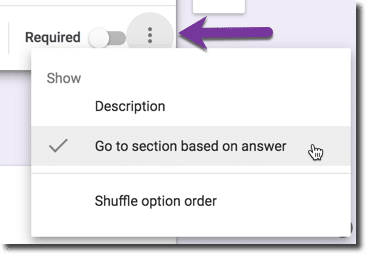
Add a question to the section and use the 3 dots in the bottom right hand corner to “Go to section based on answer.”
Template
I have updated my branching Form template to allow for quiz options. After making a copy of the template change the values in the yellow cells in column B. The Add-on will create 2 sections for each question and title the sections the question number and a revisit for the question. This feature will significantly speed up the time to create a branching Google Form.
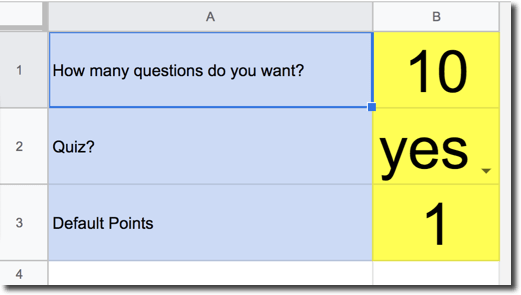
The default is to make this a quiz with points and scoring. Change the “yes” to “no” to disable your Form as a quiz.
Add-on Menu
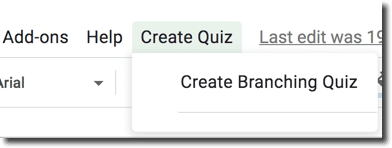
Use the Add-on menu to “Create Branching Quiz.” Note: It can take, depending on internet speed, a couple of minutes for the menu option to show up.
[expand title=”Authorizing Add-on”]
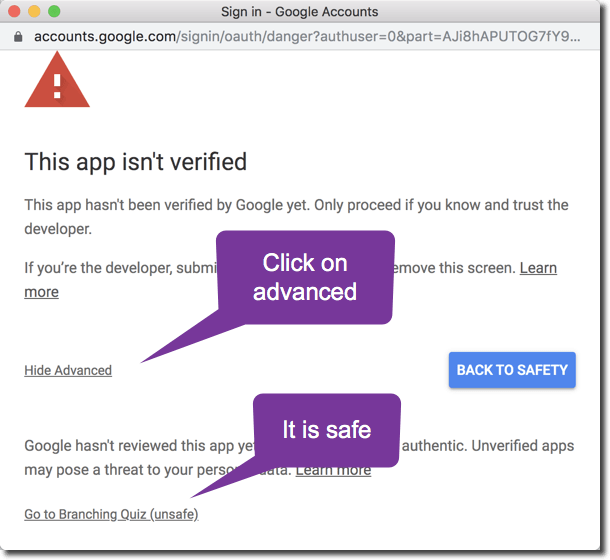
You will be asked to authorize the add-on. You are only authorizing yourself access to your own Google Drive and apps. You will likely see a screen that informs you that the app has not been verified by anyone at Google. This is correct, Google has not reviewed my code. They want you to know that Google is not vouching for the code. I coded this personally, it is safe. Expect that for every coding project I create that you will see the authorization screen to acknowledge that Google has not reviewed the code.
[/expand]
Click on Edit Link
The Form will automatically be created after you authorize the Add-on. A new page will be created in the spreadsheet to give you the link to the Google Form for you to edit and update. Additionally, the spreadsheet will function as the destination spreadsheet for the Form responses.
Set Branching
The Add-on only gets you started with creating a branching Form. Google Apps Scripts allows me to designate a question as branching, which saves you a lot of clicking to turn on “Go to section based on answer” for each question, but you still have to manually indicate for each answer which section to jump to for each answer. You also need to type each of the actual questions 🙂