I like to arrange students in groups, however I am lazy. I do not like typing “group 1,” “group 2,” “group 3,” etc… It’s repetitive Anything repetitive I have to ask myself… there must be a better way!
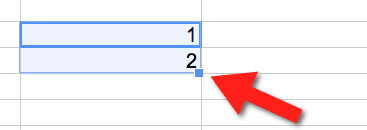
My answer to pretty much everything is to use a spreadsheet. First I will type a 1 and then a 2 into two cells on the spreadsheet. Highlight the 2 cells and grab the box in the bottom right corner and fill down to finish out the pattern.
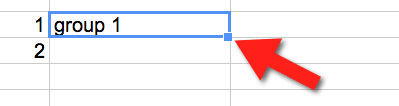
Then in adjacent cells I type the repetitive text, however I will do this as a formula. All text must be in quotation marks.
=”group ”
Notice the spacebar after the p.
One of the best words ever invented… “concatenate.” Not only does it sound really cool, it does magical things. Concatenation joins things together. While there is an =concatenate( function, I never use it. I always use the symbol for AND (&).
=”group “&A1
=”group “&A2
=”group “&A3

Now, remember that I am lazy, I don’t actually type that 3 times. I only type it once, grab the box in the corner and fill down.
Using concatenation I have saved myself at least…. 2 minutes of typing. However, I can extend that out and save myself some serious time if I have a lot of groups. But even if I only have to do it 5 times, I dislike repetitive tasks and spreadsheet magic makes me happy.
Before you get too excited, realize that you now have a list of formulas. If you delete the 1, 2, 3, 4…. then your text becomes messed up. After you have the text looking the way you want it to, highlight the cells containing the text. Copy (command C). RIGHT CLICK and choose paste special -> paste values. This will strip out the formula and leave you just with the text you wanted. Now you can delete the 1, 2, 3, 4….