





Google Forms is the best thing since sliced bread. It will take you LESS time to copy and paste your Google Doc activity into Google Forms than it will to open each student Google Doc.
Adding a Google Form to Google Classroom is easy, simply click the “Create” button when making an assignment and choose “Form.” Note: Do NOT use “Quiz Assignment.” It adds a Google Form for you, but adds funky settings you do not want or need. If you already have a Form (make one at Forms.google.com) use the Add button when making an Assignment and enter type:form in the search box to bring up all Your Google Forms.
Responses
It doesn’t do any good to give a Google Form if you can’t find the results. To get back to the responses you will locate the assignment in Google Classroom and click on the Form to launch it in another tab. Notice the PENCIL icon in the bottom right. This will take you to edit mode.
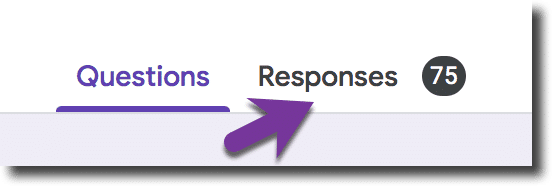
Click on the Responses tab.
Individual Responses
Notice there are 3 tabs on the Responses tab. The default is “Summary” to show you an overall summary of the responses. The middle option is “Question” to allow you to review how the students did overall by question. The last option is “Individual” where you can see how students individually responded.

Google Sheets Spreadsheet
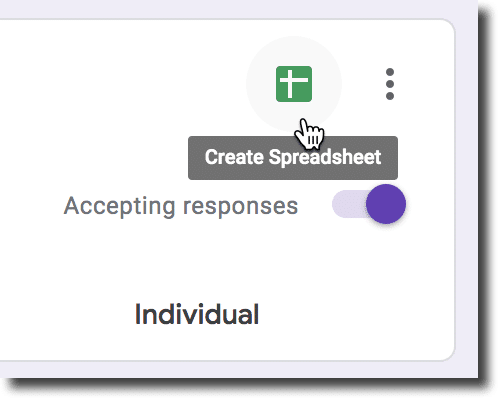
The best part of a Google Form is that the responses are copied to a spreadsheet. You need to click the green spreadsheet icon on the responses tab to launch the spreadsheet. As students respond to the Google Form the spreadsheet will automatically update with the new responses. This allows you to filter, sort, and review student work all at once. It’s amazing.








1 thought on “Find Google Form Responses in Google Classroom”
I had a student want to redo a form so I deleted his response from the spreadsheet and also the on the responses
of the form. He was able to redo it but it did not show up on the spreadsheet. I see it on the responses screen. Is there something else I can do to make sure it shows back up on spreadsheet?