


Evenly Space Elements in Google Drawings (or Slides)

distribute evenly in google drawing and google slides
Evenly Space Elements in Google Drawings (or Slides)

hold down shift and choose arrange distribute vertically

Distribute Evenly in Google Drawings (or Slides)

When creating visuals in Google Drawing or Google Slides I sometimes need to space out the elements evenly.

Control D

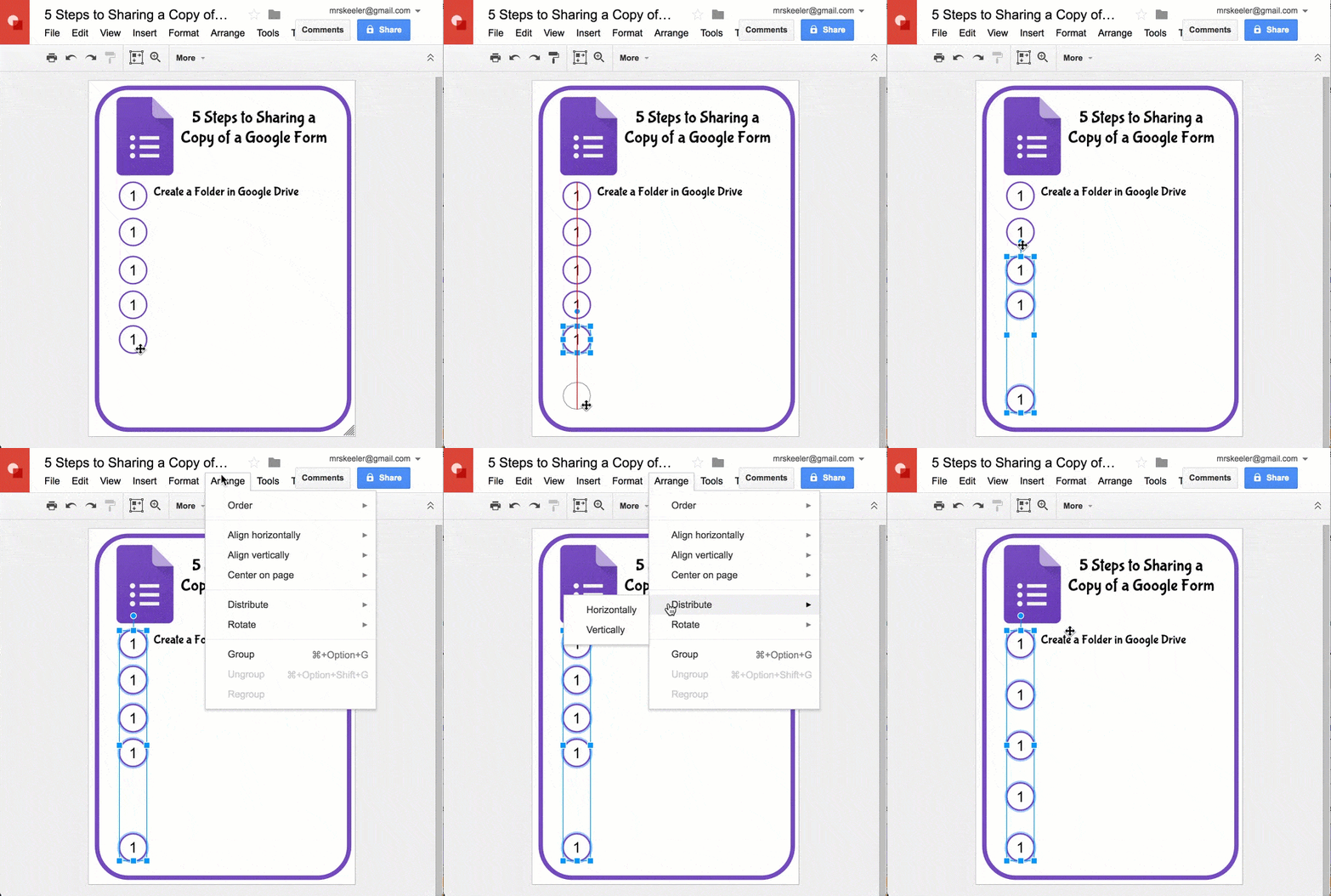
One keyboard shortcut I find helpful is Control D (Command D on a Mac). This duplicates. When creating numbered circles I will create a circle with a 1 in it, Control D duplicate it several times, and then edit to adjust the numbers to 2, 3, etc…

Red Lines

When moving shapes look for red horizontal and vertical lines to indicate that the elements is lining up with other elements in the drawing. I can keep the numbered circles aligned as I drag the dots into a row.

Last Element

To evenly space elements, place the first and last element where you want them. For example, if I have 5 numbered circles I have the first circle as high as I want it and the last circle as low as I want it. I do NOT arrange where I want the middle circles.

Shift Key

Hold down on the Shift key and click on all the elements you want to distribute evenly. Holding down shift allows you to selectively select multiple elements.

Arrange Menu

Under the Arrange menu at the top is the ability to “Distribute.” Choosing Vertically will align my numbered circles up and down the page, as my students say… like a hot dog.
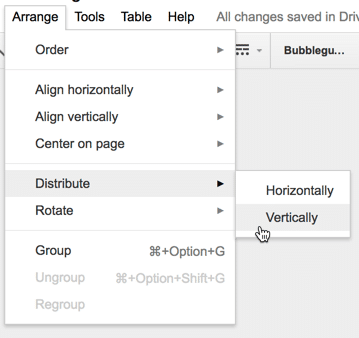
arrange distribute vertically

Leave a Comment

© 2026 All Rights Reserved.

Get effective EdTech strategies from Alice Keeler to build a more student centered classroom. Includes unique resources and templates.

Recent Teacher Tech Blog Posts

💥 FREE OTIS WORKSHOP

Join Alice Keeler, Thursday April 28th or register to gain access to the recording.
Create a free OTIS account.

Join Alice Keeler for this session for teaching with AI

Imagine having a team of teaching assistants who already know your syllabus and exactly how you like to give feedback. Join Google Certified Innovator Alice Keeler to learn how to use Google Gems to build a powerful collection of custom AI tools. We will explore how to engineer specific instructions so you can create a Grading Assistant or a Classroom Policy Manager that works for you. You will also learn how to leverage Gems shared by other educators to instantly expand your toolkit. This session is about super-powering your teaching by automating the routine tasks so you can focus on the students.

Exit this pop up by pressing escape or clicking anywhere off the pop up.