





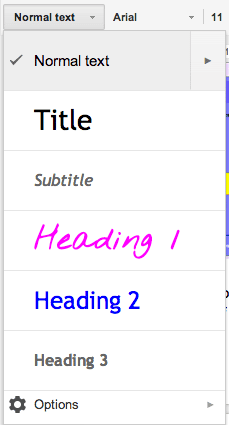
When creating documents for my school or students I like to use the headers formatting option. Mostly I like to do this so I can have an automatically created table of contents. It is also nice to help you keep the formatting throughout your document the same.
If you highlight your text and in the toolbar choose the drop down arrow next to “normal” text you will see some pre-set formatting options. Usually I stick with these, but sometimes I want to use my own formatting.
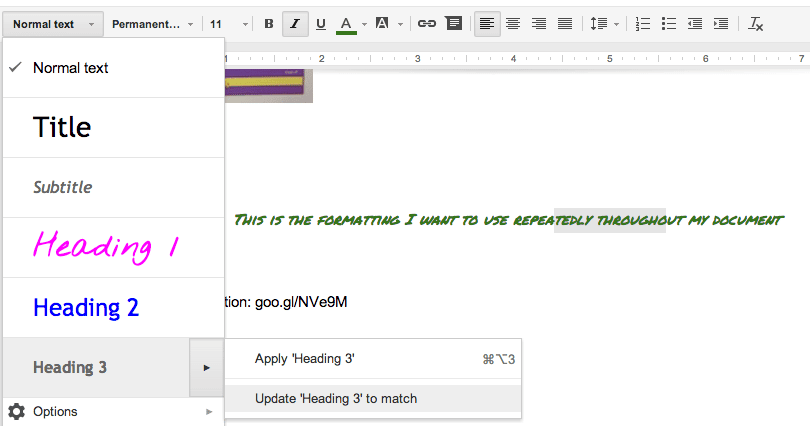
Create a formatting style (font color, size, bolding, underline, etc…). Highlight any part of that formatting. Click on the drop down arrow and instead of selecting one of the heading styles, notice the arrow that shows up when you hover over a formatting style. Click on that arrow and choose to “Update heading to match.” This will change the formatting in the drop down list (for that document only) to make it easy to apply in multiple places.
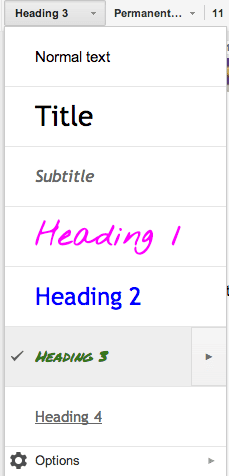
Note: If you used a heading style and then changed the heading style to match it will update all of the places in the document to match that style. This is handy for if you change your mind and want all of your heading 2’s to be bold, you will not have to hunt down all of the places in your document with heading 2, they will automatically update to being bolded.





