I am finally getting used to using the @ symbol in Google Docs to insert things. Rather than making the long trek up to the toolbar, try to get in the habit of hitting the @ symbol when using Google Docs. What are you thinking you want? Try summoning it from where you are typing. Horizontal lines in Google Docs are handy and possibly you didn’t know you could add them.

Horizontal Lines in Google Docs
As a teacher, you might find yourself creating documents for your students, colleagues, or parents. Sometimes you want to add a little extra flair to your documents, and one way to do that is by adding a horizontal line to separate sections or emphasize important information. The good news is that you don’t need to go searching for an external tool to do this – Google Docs has a built-in way to create a horizontal line using the @ symbol.
Here are some reasons why a teacher might want to insert a horizontal line into a Google Doc:
- To separate different sections of the document. For example, a teacher might use a horizontal line to separate the introduction from the body of the document.
- To add visual interest to the document. Horizontal lines can help to break up text and make the document more visually appealing.
- To create a table of contents. A horizontal line can be used to separate the table of contents from the rest of the document.
- To create a checklist. A horizontal line can be used to create a checklist of items that need to be completed.
- To create a divider. A horizontal line can be used to create a divider between two sections of the document.
- To create a call to action. A horizontal line can be used to create a call to action, such as “Sign up for our newsletter” or “Visit our website.”
- To create a banner. A horizontal line can be used to create a banner, such as a “Welcome to our Document” banner.
Using the @ Symbol
You do not have to type the entire word “horizontal.” @hori is enough to display the horizontal line option. Press enter to complete the selection.
-

Book Creator joins forces with Kami
A short story about how Book Creator is still available through Kami, and how the two complement each other in a learning cycle to enhance your lessons. PLUS why Kami is more than just a PDF annotation tool.
-
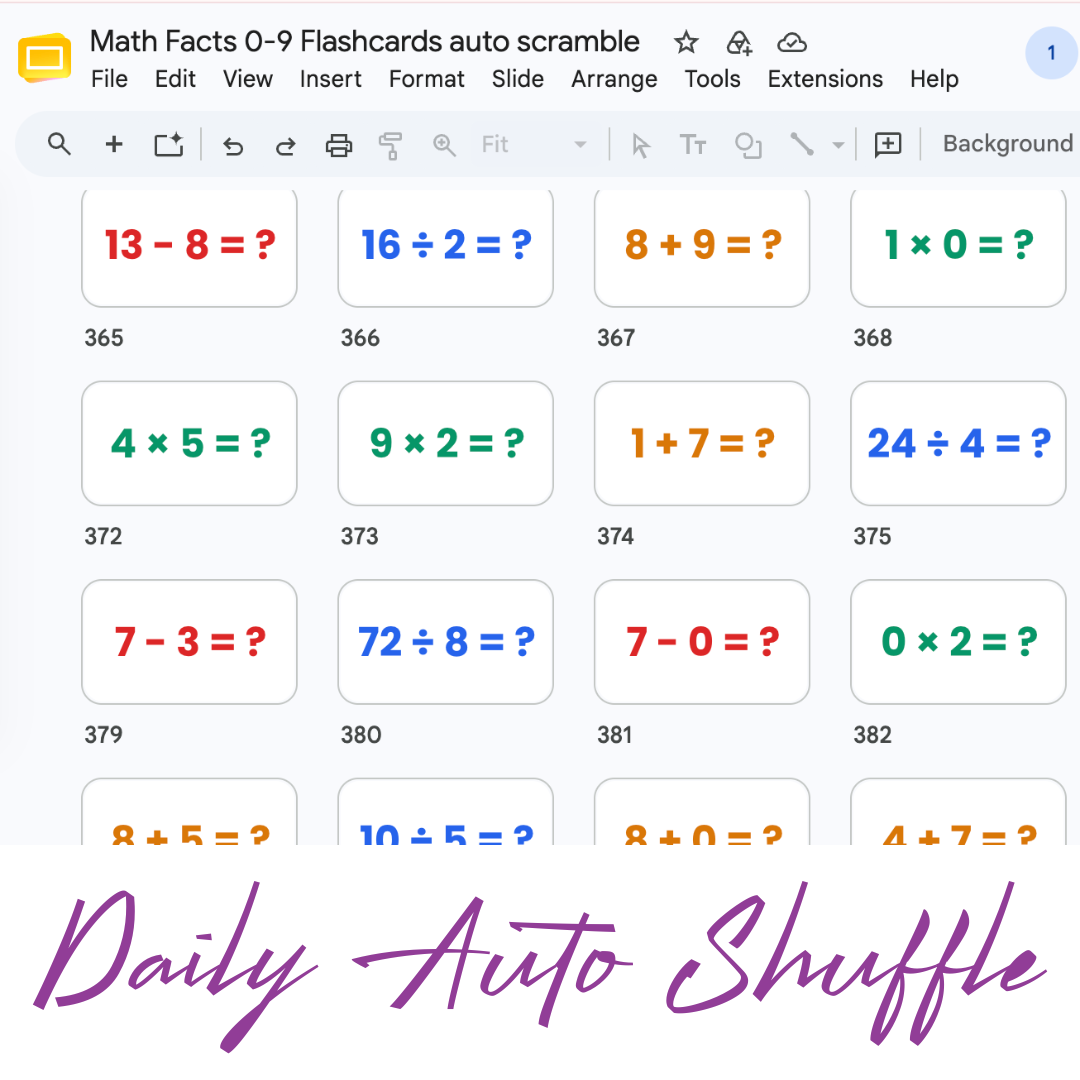
Math Facts Practice – Slides
Google Slides with all the math facts to practice.
-
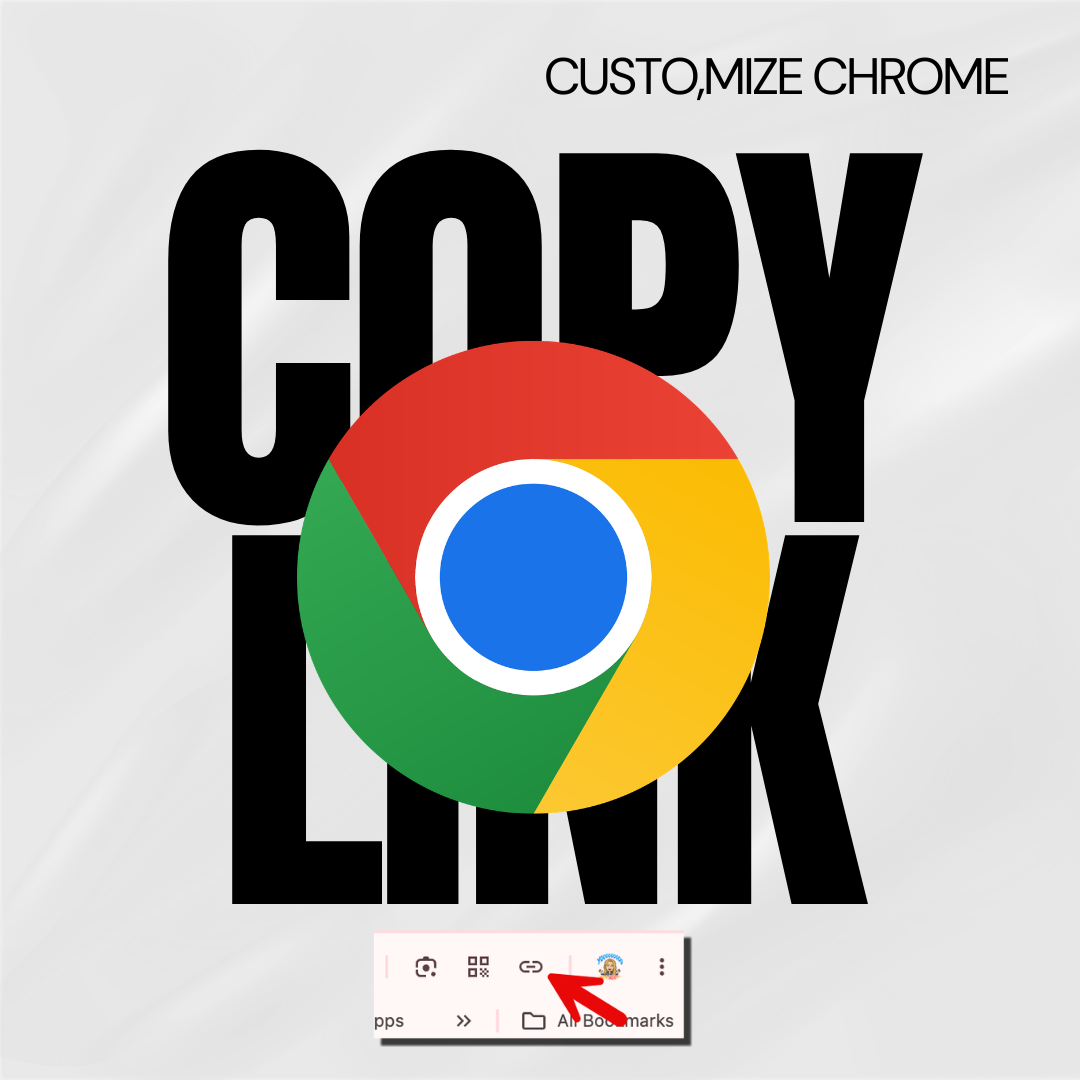
Copy the Link in Chrome
Hate copying the URL from a website? Chrome makes it fast.
-

Setting Up Your Google Classroom and Using AI
One of the first steps in starting a new school year is setting up your Google Classroom.
-

Google Gemini for Teachers Quick Start Guide
Quick Start Guide for Google Gemini
Use Horizontal Lines in Google Docs
Horizontal lines are a simple but powerful way to visually separate content and create structure within a document. They are commonly used in documents such as resumes, newsletters, and reports to organize information and create a hierarchy of content.
Separate Sections
One of the most common uses of horizontal lines is to separate sections within a document. This helps to break up large blocks of text and make the content easier to read and digest. By using horizontal lines to separate sections, you can create a more professional-looking document that is easier to navigate.
Highlight Important Information
Another use of horizontal lines is to highlight important information within a document. By using a thicker or colored line, you can draw the reader’s attention to a specific piece of content, such as a call-to-action or an important statistic.
Visual Interest
Horizontal lines can also be used to create visual interest and balance within a document. For example, you can use a horizontal line as a divider between two columns of text, or you can use a series of lines to create a pattern or texture within the document.
Be Strategic
When using horizontal lines, it’s important to use them consistently and strategically throughout the document. This will help to create a cohesive and professional-looking design that is easy to read and understand. You should also be mindful of the thickness and color of the lines, as well as the spacing between them, to ensure that they don’t overwhelm the content.
horizontal lines are a versatile design element that can be used to create structure, highlight important information, and add visual interest to a document. By using them strategically, you can create a professional-looking document that is both easy to read and visually appealing.