Google allows you to create videos natively in Google Workspace using Google Vids. Creating video can be intimidating, you don’t know what to say and you end up saying “um” a lot… Google Vids helps you with their teleprompter feature.
Create Videos with Google Vids
Up until this last year, I created my videos in Canva (and sometimes I still do). Google Vids allows you to create and share videos through your Google Workspace Google Drive. I love the convenience of being able to find my videos right in Google Drive and share them like I would any Google Doc. Easy. Being able to organize these into folders in my Google Drive or add to Google Classroom assignments is the cherry on top.
Using a Teleprompter
A teleprompter is a display device that prompts the person speaking with an electronic visual text of a speech or script. Its primary purpose is to allow a presenter to read a script word for word while maintaining direct eye contact with the audience or the camera lens. This creates the illusion that the speaker has memorized the speech or is speaking spontaneously.
Teleprompter in Google Vids
The teleprompter feature in Google Vids is one of my favorite things. It allows me to write down what I want to say to keep my video concise. It’s also less intimidating to record a video when you can use a teleprompter.
Delivering high-quality content, tools, and support for reading comprehension
ReadWorks is a free, research-based website designed to support educators in teaching reading comprehension across grades K–12. It provides a rich library of high-quality, standards-aligned instructional content.
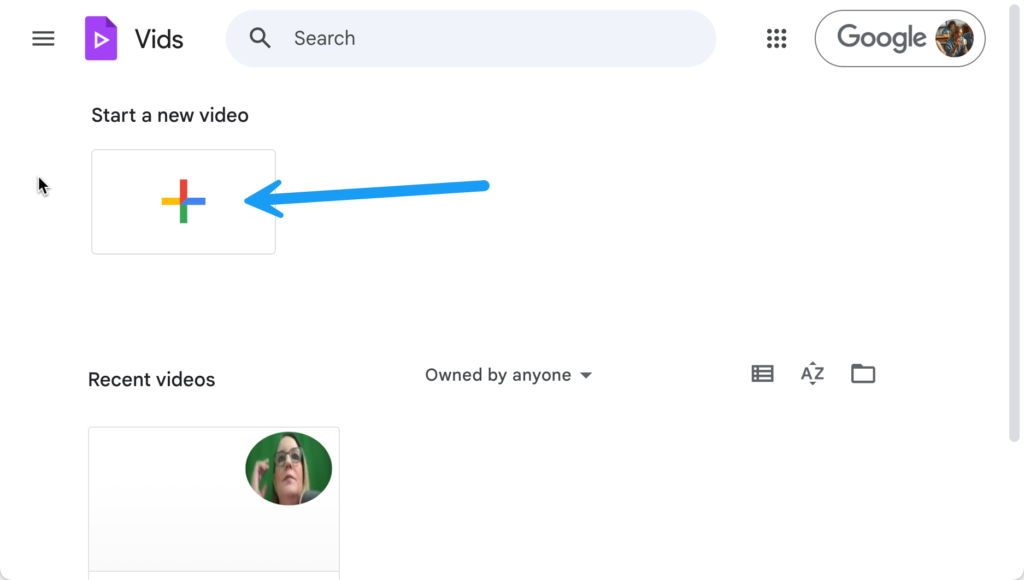
Get started with video creation at vids.google.com or vids.new. Click to start a new video. If you want to use the teleprompter, do NOT start with the “Record” option. Instead, choose one of the other options. If you have a Google Slides presentation to help you get started there is an option for that.
Set the Teleprompter Script
After starting your Google Vids file, select “Record” on the right hand side. This will allow you to type or paste your script for each scene. Choose to “Start recording” or use the Insert menu to insert a video recording or video placeholder.
Use AI to create lesson plans, rubrics, newsletters, anything you want.
Educator AI Assistant is different by collecting ZERO data. Shows you the prompt and allows you to edit and share.
Runs locally in your own Google Sheets™.
Fully transparent and customizable.
Created by AliceKeeler
Starting the Teleprompter
To use the teleprompter in Google Vids™, you must access the Recording Studio.This feature is designed to help you (or your students) deliver a script naturally without looking down at notes.
Open the Recording Studio
Open your Google Vids™ project.
In the sidebar or timeline, click Record.
Select Camera (or Camera & screen) to enable the video feed.
Add Your Script
Look for the Script button (often a document icon) in the side panel of the recording window.
Type your script into the text box, or copy and paste it from a Google Doc™.
Note: If you used “Help me create” to start the video, a script may already be generated for you.
Activate Teleprompter Mode
Once your script is ready, you will see options for how the text displays. Select one of the Teleprompter modes:
Read Along: This is the AI-powered option. The text automatically scrolls as you speak, highlighting where you are. If you pause, it pauses.
Rolling: The text scrolls at a continuous, fixed speed (which you can adjust).
Manual: You scroll the text yourself using your mouse or keyboard arrows.
Record
Position your eyes near the top of the text (closest to your webcam) to maintain eye contact.
Click Start recording.
Why This Matters for Learning
Using the Read Along mode is particularly powerful for students. It reduces the cognitive load of trying to match a scrolling speed, allowing them to focus entirely on their tone, expression, and the content of their message. It supports the “Communication” aspect of the 4 Cs by helping students practice clear, confident speaking.
I made an attempt to use Google Vids to make a video about Google Vids. This failed in that the microphone could only be used in one of the videos which ended up not capturing exactly what I wanted. See the video at the top for a better recording as I used a live streaming platform to record me using Google Vids.
Linked From Google Drive - View Google Vids
What made this Google Vids video really nice is once I was done editing it, I didn’t have to wait for it to render and download. I simply copied the share link… in the same way I would copy the link from a Google Doc. You see the video loads up from Google Drive and I didn’t have to do all the steps it takes to add to YouTube. A huge time saver, recommend!