


Creating Presentations and Images From Templates
Slides Mania is where I look, first, when creating a Google Slides or PowerPoint presentation. Customized creative templates for FREE.
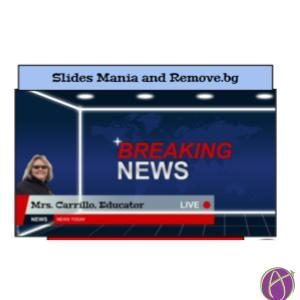
Breaking News is just one of the templates provided. How cool is it for students to pretend they are a newscaster and have some Breaking News!
Remove.bg
In this particular template, it is suggested to use Remove.bg to remove the background of a picture and insert it into the presentation. I use Remove.bg daily just for fun. In seconds, you can select an image, remove the background and replace the background or use the image with a transparent background.
Here’s the image I selected for Breaking News. I used Remove.bg to remove the background and this image is now available to use in multiple formats and presentations. I show students this website tool every year and they enjoy adding in new backgrounds that Remove.bg provides. You can even upload your own background as an option. Remove.bg is very easy to use and I usually use it on my phone. I wrote a blog about Remove The Background that might be helpful if you want more information.


Original Image Transparent Background
How To Create A Breaking News Slide
Original Slides Template

Step 1-Access the Breaking News Slides Template (Link to Google Slides Template)
Step 2-Select or take a picture that you feel would best replace the provided image and use Remove.bg to remove the background to transparent, no background. Save to your computer.
Step 3-Delete the provided image on the Breaking News Slide Template. Insert your picture with a transparent background. Adjust the size and location by dragging the image.
Optional Step 4- To save and share this new slide you created. Select.>File>Download >PNG>Save.
About the Author
Guest Blog by Marcia Carrillo. Marcia has been a secondary educator for over 30 years and is currently teaching Independent Studies at a high school in California. She has earned her B.S. in Physical Education and Biology and her M.A. in Organizational Leadership. She presented at #FallCUE in 2019 with her Mentor team.She is passionate about student centered learning and using technology to improve learning and engage students. She can be followed at @MCarrilloEDU on Twitter and Instagram