






As always, Google is always getting better. Google Sites is no exception. Sites is an easy way to create a website that integrates Google Drive documents. Simply double click and choose Drive files to embed. Use Google Sites to create tutorials for students. Have students create a portfolio of their best work along with a reflection to showcase their learning holistically.
Caution: Documents added to Google Sites do NOT change sharing permissions.
Before diving into Google Sites, be aware that when you insert Google Apps documents the sharing permissions remain in tact. In other words, if the document is private, it will still be private. As the creator of the site you obviously always have permissions to your own documents so the documents are always visible to you. However, outside persons will not be able to see the documents unless you set the sharing permissions on the document to allow that.
3 Google Sites Features
Collapsable Text
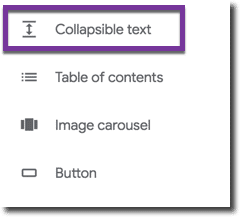
Scrolling through a long page of text can be less than fun. Google Sites allows you to create collapsable text from the insert sidebar.
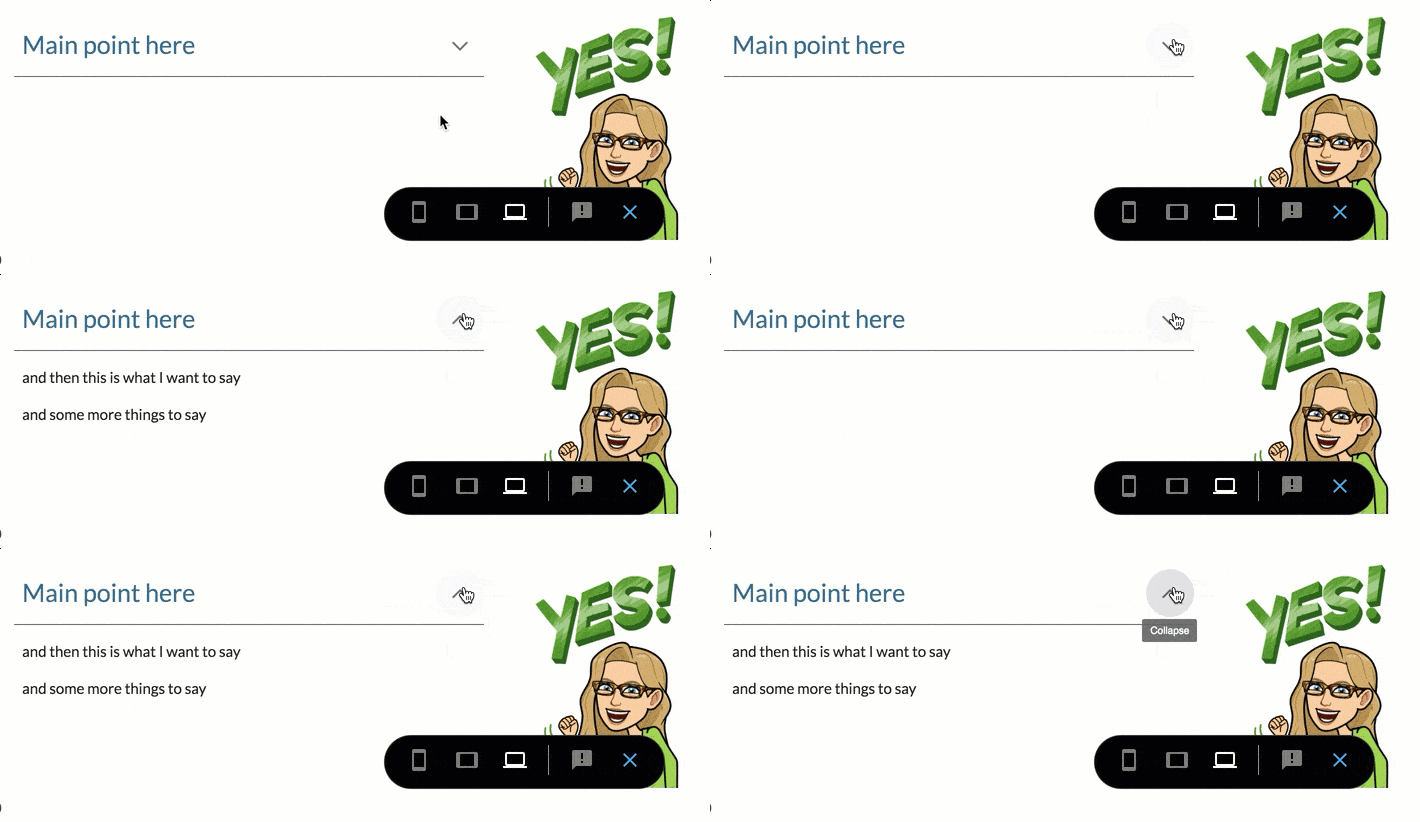
Type a few words to tease what will be revealed by clicking on the arrow. Type text below the headline.
2. Change Fill on Buttons
While buttons themselves are relatively new, even newer is the ability to change the fill of the button. Choose “Button” from the insert sidebar and notice the tiny triangle on the button options. The default is “Filled.” Instead choose “Outlined” or just “Text.”

3. Image Carousels
For projects have students take pictures of the progress of their project. Either with mobile devices or screenshots. Using the insert sidebar, have students create an image carousel of their project. This allows them to insert multiple images into one spot on the site.

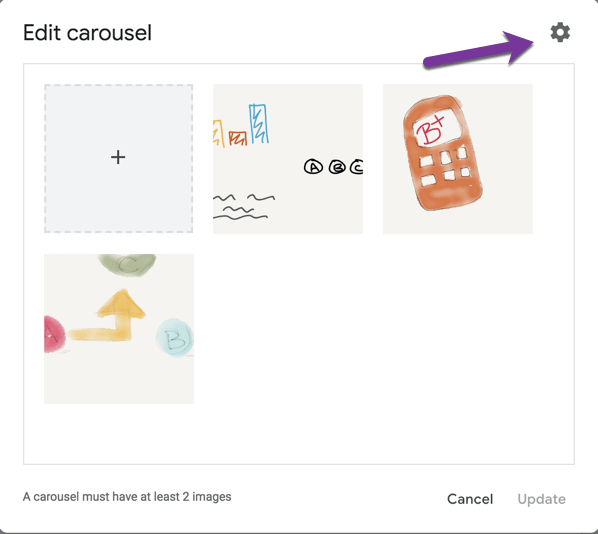
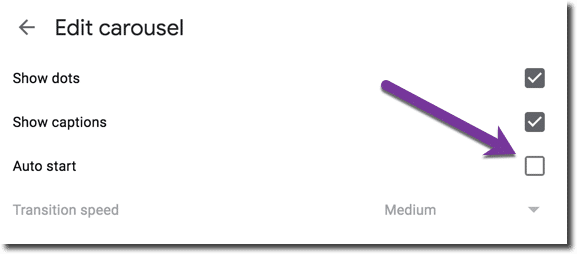
Be sure to click the carousel settings cog…. twice. There is a cog on the carousel to add pictures and a second one on the edit carousel screen.
This allows for having the image carousel automatically advance the images. This default is off, click “Auto start” checkbox to give the site viewer less clicking.
-
ReadWorks and the Power of the Daily Article Routine
ReadWorks is a free, research based, tool to aid in reading comprehension. Try the Article-A-Day to save time and provide differentiated options for readers.
-

DOK = Critical Thinking
DOK is the measurement of critical thinking on a task. Better understanding Depth of Knowledge helps you to better incorporate critical thinking into lessons.
-

3 Google Sheets Shortcuts You’ll Actually Use
The answer is always a spreadsheet, but sometimes the tips are hard to remember to implement. Practice these 3 Google Sheets shortcuts to really help
-

Transforming the Reading Log
Reading logs can lean into compliance over developing a love for reading. Try ReadWorks to help support building knowledge and a love of reading.
-
10 YouTube Hacks for Teaching
YouTube is a powerful tool in the classroom. Here are 10 hacks to help you get more out of YouTube.
-

Amplify Student Voice and Redefine Classroom Possibilities
Technology should serve as a bridge that connects students rather than a wall that isolates them. Curipod™ helps fulfill the true promise of educational technology by shifting the focus from passive clicking to active student voice.



