





Add Slide Numbers in Google Slides
By default slides in Google Slides do not have “page numbers.” It is easy to add them to Google Slides.
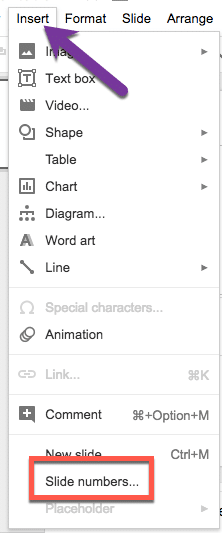
Insert Menu
Use the Insert menu to locate “Slide numbers.”
Turn On Slide Numbering
The default is “Off.” Instead select On. You may not want the “1” on the first slide and instead to start with the 2 on the 2nd slide. Checkbox “Skip title slides” in this case.
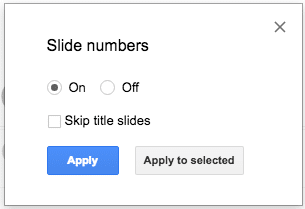
Note that skipping title slides is not just the first slide. It is any slide that uses the “Title slide” layout. Any slide that has the “Title slide” layout will not have the slide number. The slide is still counted. If slide 15 is a title slide the “15” will not appear in the bottom right hand corner. However slides 16, assuming it is not a title slide, will have the “16” in the bottom right.

Moving Slide Numbers
The slide numbers appear in the bottom right but you may want to have them appear in a different location or with different formatting. Use the Insert menu and choose “Master.”
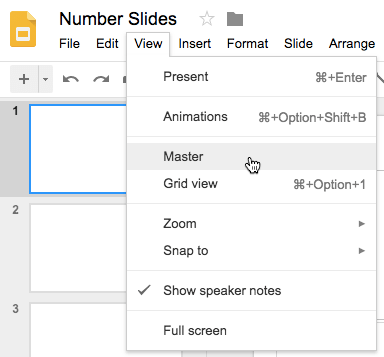
Notice there is a small hashtag in the bottom right of the slide layouts.
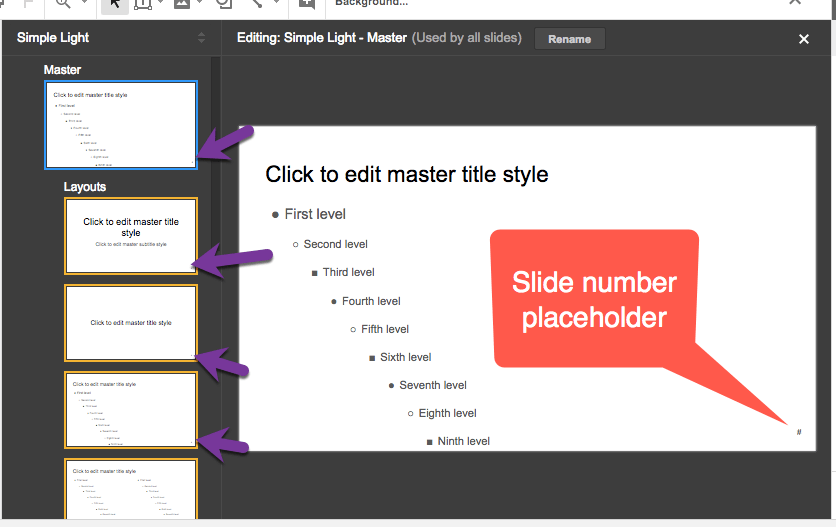
If you select the “Master” layout and change the appearance of the placeholder this will make a universal change to all layouts. Notice in the example below that I made the font on the hashtag Comic Sans, Hot Pink, font size 90 and moved it more towards the middle of the sheet.





