





I just received an email that was sent out to at least 50 recipients. The problem with is that when someone replies to all it goes out to all 50+ people and quickly my inbox is blowing up with emails from people I do not know.
Privacy
Besides the excessive email that is generated by sending an email to a large group of people, the privacy of all the people in the list is compromised. Most likely the recipients do not know many of the people on the email list. The email lists all of the email addresses who the email was sent to. This allows others on the list to obtain email addresses of people who may not want their email address distributed.
BCC
BCC stands for “Blind Carbon Copy.” Use BCC when sending out emails to groups of people who are not collaborating on the same project. If “reply to all” is not expected, use BCC instead of “To” or “CC.”
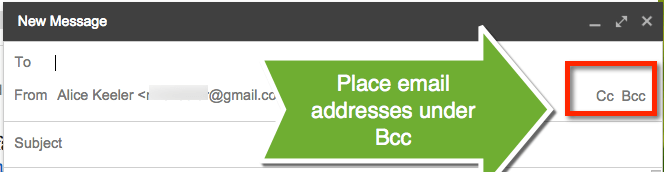
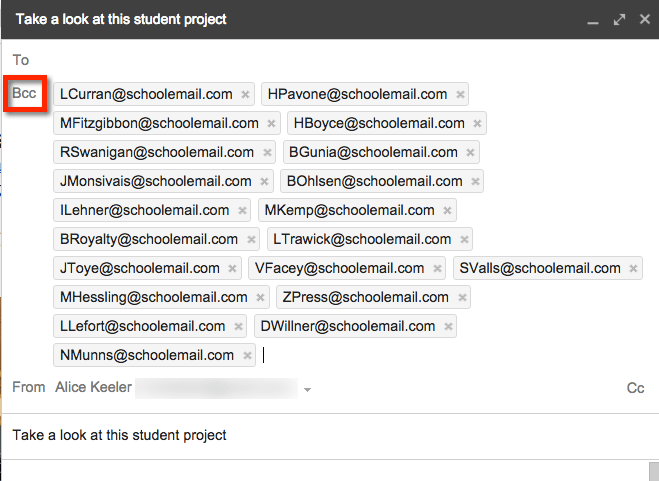
Placing email addresses under “BCC” instead of “To” hides the email addresses to the group of recipients. This also means they are not able to reply to all. Leave the “To” line blank. Click on “Bcc” in Gmail to expand out the options for senders.
Reply to All
When an email is sent to a group, be careful about replying to all. Your email may default to “Reply to all” when responding. Unless the comment is really intended to further the conversation or is of the benefit of the whole group avoid replying to all. Comments such as “I agree” or “Thank you for sharing this” are not appropriate for a reply to all message.





