

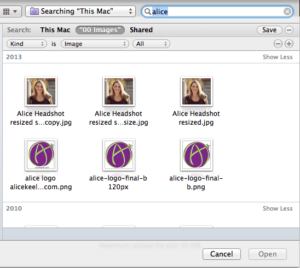




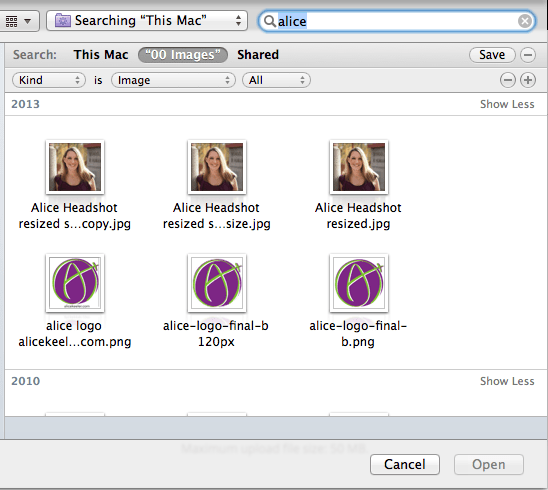
If you are using your Mac to attach files you may want to filter a search to find the file you are trying to attach. In the window where you can browse for the files you are wanting to attach do a search in the upper right hand corner. After you type in the search option you can filter the search to help you find the exact file you are looking for. Notice under the search box is a small plus button. This allows you to add search options.

Options
After selecting the plus icon there is a box on the left side of the search to choose if you want to filter by the “Kind” of file, when it was “Last opened” or modified. I usually am searching for a particular file type so I leave the default of “Kind.”
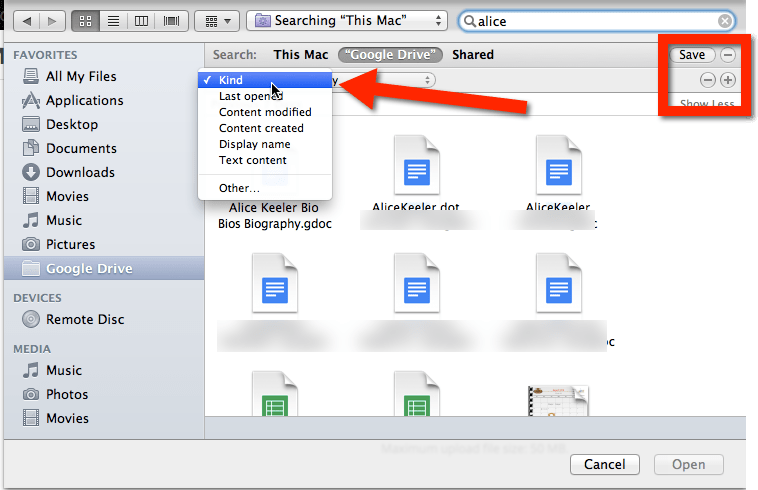
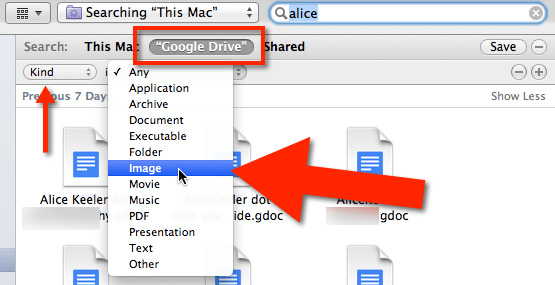
The box next to it lets you specify what kind of file you am looking for. An image, movie, presentation, etc… If you started your search in a particular folder such as Google Drive or Downloads, you will have the option to continue to filter your search to that folder by selecting the folder next to “This Mac.” in the search options.
Leon Cych tweeted me to suggest CLICK HERE





