





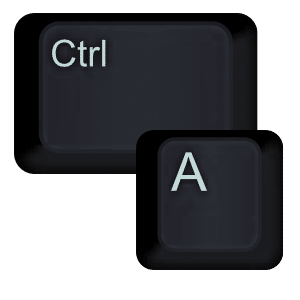
Control A is select all. I use this all of the time for a variety of reasons. (Note, it is Command A on a Mac).
URL’s
When I am trying to copy a URL up in the address bar sometimes I do not highlight the entire URL. Rather than fight with triple clicking or trying again I simply hold down the Control key and press A quickly.
Change the Font
When working on a document I sometimes need to change all of the font. For example, APA requires Times New Roman 12 pt font. The default font is not this and I rarely remember to set it before I start working on the document. Before I submit my paper I hold down the Control key and press A to highlight the entire document. I can then choose the font style and size and have it applied to the entire paper. I can also choose double spacing at this time to make sure the entire paper is double spaced. This is particularly handy when you have copied and pasted from other sources and the formatting might be slightly different.
An Entire Website
Sometimes I want to copy and paste and entire website into a document for myself. If I do this into a Google Document I can insert comments to myself to help me break down the webpage. On the webpage itself if you use Control A it will select everything on the webpage. Control C to copy the entire page.
Moving Graphics
When using a drawing program or a presentation tool I frequently want to move or shift EVERYTHING. Control A selects everything on the canvas or slide. Use the arrow keys to nudge into place.





