License Attribution (cc) Some rights reserved by Tom Verre
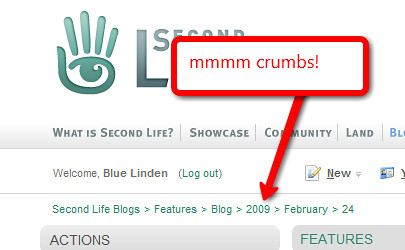
I noticed that SkyDrive does not have breadcrumbs to help me navigate. Breadcrumbs are links, usually along the top of a webpage, that show you where you have been on the website to help you to more easily navigate your way back. (These are in reference to the story of Hansel and Gretel who left a trail of breadcrumbs to find their way back out of the woods.) Even without the breadcrumbs it is fairly easy to navigate in SkyDrive. Try these 3 tips for getting around.
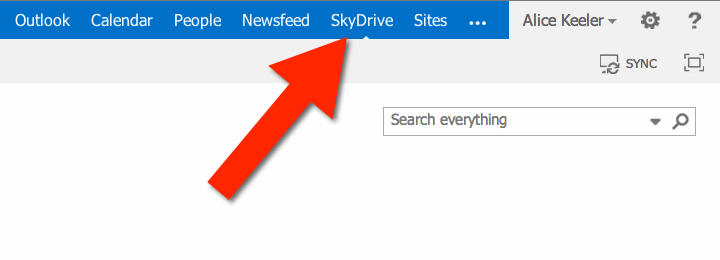
Click on SkyDrive
In the upper right of the Microsoft 365 web login is a blue bar with links to the available Microsoft products. Clicking on SkyDrive will take you back to the main list of documents.
Navigate Back
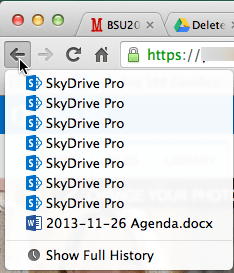
If you are in a folder, or even several folders deep, simply use the back arrow in your browser navigation to return to the previous view.
You are able to navigate back through multiple folders. In other words, if you have subfolders in your folders you can select the back button until you return to the level you are desiring.
Click on Your Name
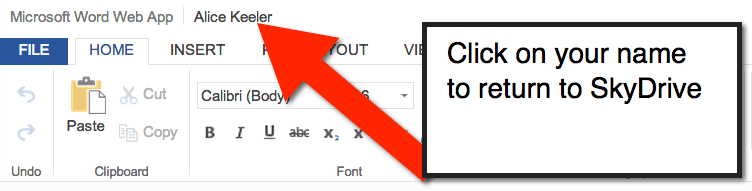
When you select a file in Microsoft SkyDrive you are navigated away from the list of SkyDrive documents. To return, simply click on your name at the top left of the document.