






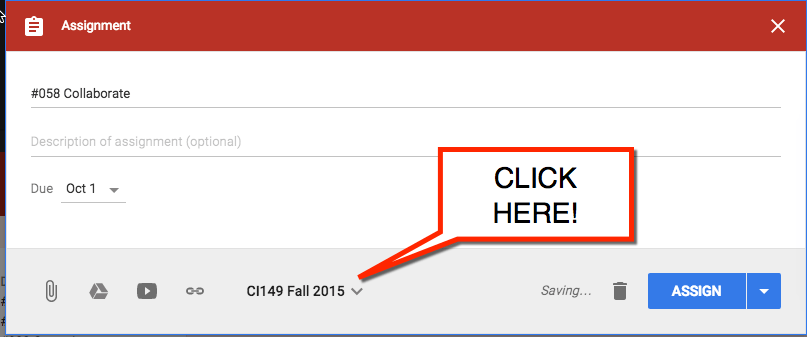
When creating a Google Classroom post (assignment, announcement or question), you can assign the post to multiple classes at the same time.
At the bottom of the post are 4 icons to attach items in Google Classroom. Next to that is the class title for the current class. Click on the class title. This will reveal a list of your classes that you are a teacher of. You can click the checkboxes next to all the classes you want to push the post to.
No Update on Edit
Note that while you can assign to multiple classes at once, the posts are not connected. Editing one does not edit all of the classes. Edits need to be made on a class by class basis.
Editing
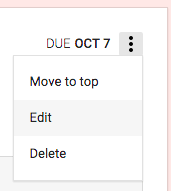
To edit a post, you will notice in the upper right-hand corner of each post in the stream three stacked dots. Click on the 3 stacked dots to reveal more options. You can move the post to the top of the stream, edit the post or delete the post.
If you have already assigned a post you can not edit attachments marked as “Make a copy for each student.” This means you can not add additional files as “Make a copy for each student” to an assigned assignment. You can also not delete the assigned attachment.





4 thoughts on “Google Classroom: Assign to Multiple Classes”
Can Google keep be used in conjunction with Google classroom?
What do you mean in conjunction… you can have kids use it and link to Google Keep…
I’m noticing that when I comment on students’ work through Google Classroom, there’s no easy way for them to see it (no notification via email, etc). It ends up kind of getting lost in the shuffle. How do you handle this?
Students should get an email notification if you leave private comments in Google Classroom