

AI is built into everything, including Google Sheets. However, how do you easily utilize AI when building spreadsheets, and particularly when you are reviewing student responses in a Google Form? A simple function in Google Sheets allows you to use AI on a range of data.
As part of my workshop for OTIS “Catching Up on Google AI: 60 Updates to Transform Your Teaching” I shared this tip on using the formula =AI in your Google Sheets. Please sign up for a free account to gain access.
Analyzing Spreadsheet Cells
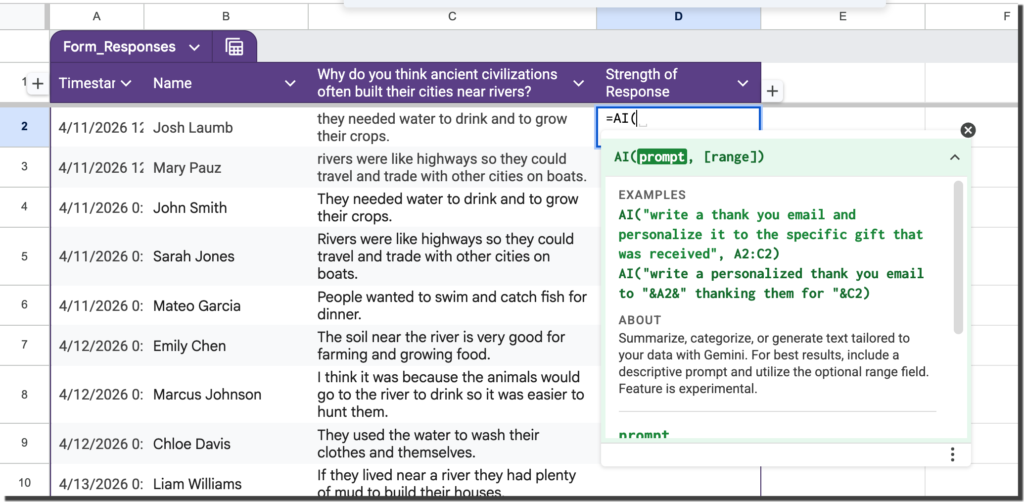
Whether your spreadsheet has Google Form responses, or if it’s just a regular spreadsheet… you have questions about the data. Google Gemini can help. Your edition of Google Workspace and included AI capabilities might impact your access to this feature.

Delivering high-quality content, tools, and support for reading comprehension
ReadWorks is a free, research-based website designed to support educators in teaching reading comprehension across grades K–12. It provides a rich library of high-quality, standards-aligned instructional content.
Article-A-Day, helps students build knowledge and vocabulary in just 10-minutes a day.
Create a Column for AI
You need to make space for the AI response to your question, prompt. Insert a column where you want the answer to appear.
Equals AI
Start the cell formula with an equals sign and type AI(
Your prompt needs to be in quotations.
=AI(“For a 6th grade level, how strong is this response to the question?”)
Reference the Cells
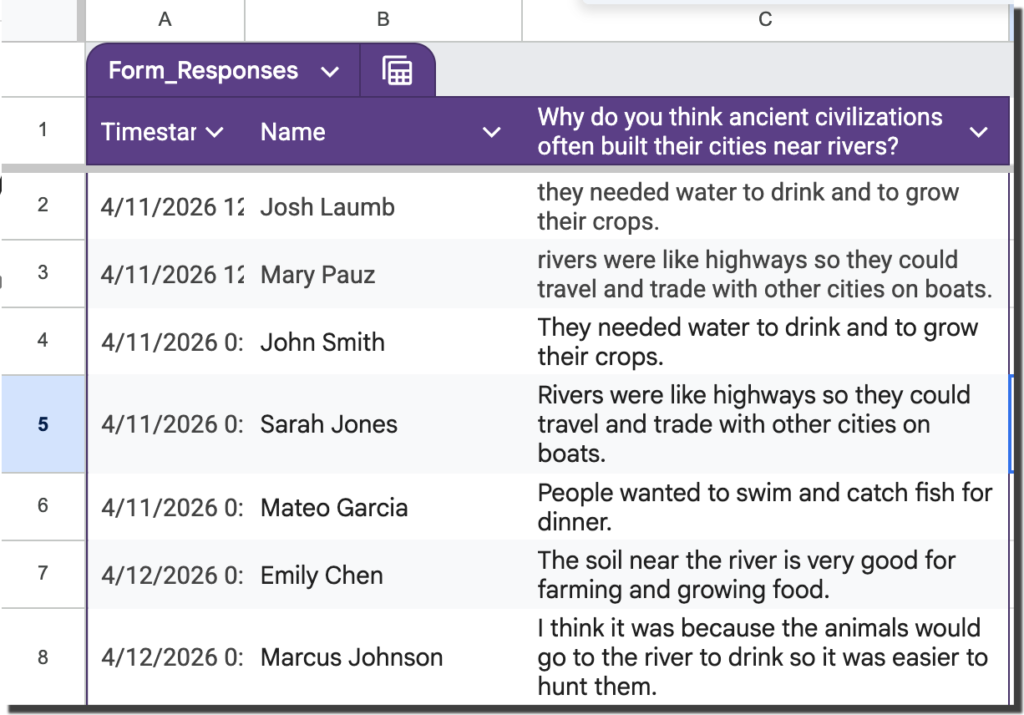
The above prompt is bad, it does not refer to where the student response is. Nor does it indicate what the question is. Both would be needed to have a stronger prompt.
=AI(“For a 6th grade level, how strong is this response to the question: Why do you think ancient civilizations often built their cities near rivers?”,C3)
Notice in this prompt there is a comma and the range of the cell that the prompt is referring to. I’ve also included the text of the question in the prompt.
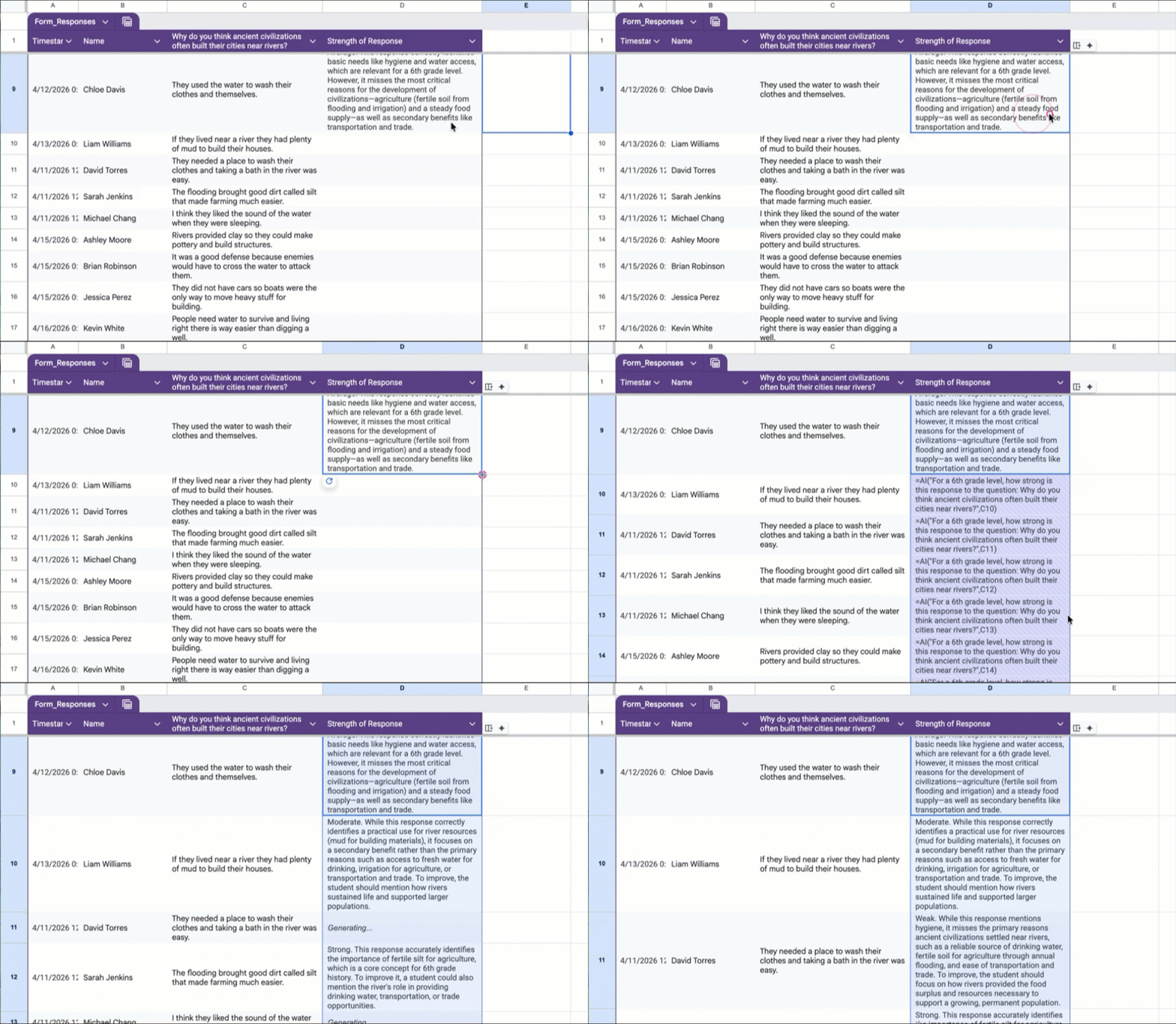
Copy the Formula
Instead of pasting all of your student responses into AI to assist with feedback, using =AI allows you to apply the prompt to a range of responses. Copy the formula you wrote to the entire column of student responses.
Concatenate Your AI Formula
One of my favorite spreadsheet words is “concatenate.” It allows you to smash text and cell referencing together. Use the & (ampersand) symbol. I find this method to be more reliable when using =AI
=AI(“For a 6th grade level, how strong is this response “&C3&” to the question: “&$C$1)
Notice in this example I omitted the comma and the cell range that the prompt is acting on and instead build the cell reference into the prompt.
“&C3&”
The text is contained within quotations marks. Then I used the ampersand (&) to reference the value in cell C3. Then used the ampersand again to return to the text of my prompt.
The question is ALWAYS in cell C1, so in this instance I used absolute cell referencing.
“&$C$1
Add AI to Your Spreadsheet
Bulk AI prompts in a spreadsheet is a huge time saver. If your spreadsheets have this feature, try adding a prompt to your sheet to see what you can discover.
TemplateTab by AliceKeeler

Collects NO User Data
Loved by millions! This FREE Add-on for Google Sheets™ allows you to duplicate a graphic organizer within a spreadsheet for each student on your roster.
Quickly create tabs!!
TemplateTab allows you to have all students in the same Google Sheets™.
Or simply perform record keeping for each student in your class, with each student having a named tab.
Slides to Spanish+ by AliceKeeler

Collects NO User Data
Convert your Google Slides™ to “ANY” language.
Creates a copy of your Google Slides with a quick option to convert to Spanish. Use the sidebar to select any language supported by Google Translate™. FREE
Generating & Personalizing
Supportive Feedback:
=AI("Write a supportive 2-sentence feedback note based on the student's progress.", A2:B2)Interest-Based Math:
=AI("Create a math word problem about " & $A$1 & " that includes the student's interest in " & B2)Email Drafts:
=AI("Draft a professional email to a parent regarding the student data in this row.", A2:G2)Lesson Hooks:
=AI("Generate 3 creative 'hooks' for a lesson on this topic for 8th graders.", A2)Reading Level Adjustment:
=AI("Rewrite the text in B2 so it is appropriate for a " & $A$1 & " reading level.")
Summarizing & Extracting
Conference Notes:
=AI("Summarize the key action items from these parent-teacher conference notes.", B2:D2)Goal Tracking:
=AI("Based on the notes in B2, identify if the student met the goal listed in " & $A$1)Article Summary:
=AI("Provide 3 bullet points summarizing the main arguments in this text.", C2)IEP Highlights:
=AI("Extract the primary learning accommodations mentioned in this student profile.", A2)Theme Extraction:
=AI("List the 5 main themes found in this book summary.", D2)
Categorizing & Organizing
Sentiment Check:
=AI("Analyze the sentiment of this student's reflection: " & B2 & ". Is it positive or frustrated?")Direction Alignment:
=AI("Does the response in C2 follow the specific directions listed in " & $A$1 & "?")Inquiry Sorting:
=AI("Categorize this inquiry as: 'Urgent', 'General', or 'Thank You'.", B2)Error Grouping:
=AI("Classify this mistake based on the definitions provided in " & $A$1, C2)Subject Labeling:
=AI("Classify these science fair projects into Biology, Physics, or Chemistry.", A2:B2)
Real-Time Info & Facts
Fact-Checking:
=AI("What was the exact date of the event described in this cell?", A2)Demographics:
=AI("What is the current population of " & A2 & " as of today?")Biographical Data:
=AI("What is the birth date and primary field of the scientist in this row?", A2:B2)Geographic Facts:
=AI("What is the official language and currency of " & A2 & "?")Science Constants:
=AI("What is the atomic mass and symbol for this element?", A2)