






We all are looking for ways to save time, and money. Creating presentations is now built into Google Gemini. Even with a free Google Gmail account this feature is available to you. Google Gemini, with its advanced AI capabilities, can be a powerful tool to kickstart your presentation slide creation process. However, as with any AI tool, it’s crucial to understand its limitations, especially when it comes to designing slides for optimal student learning.

Creating Presentation Slides
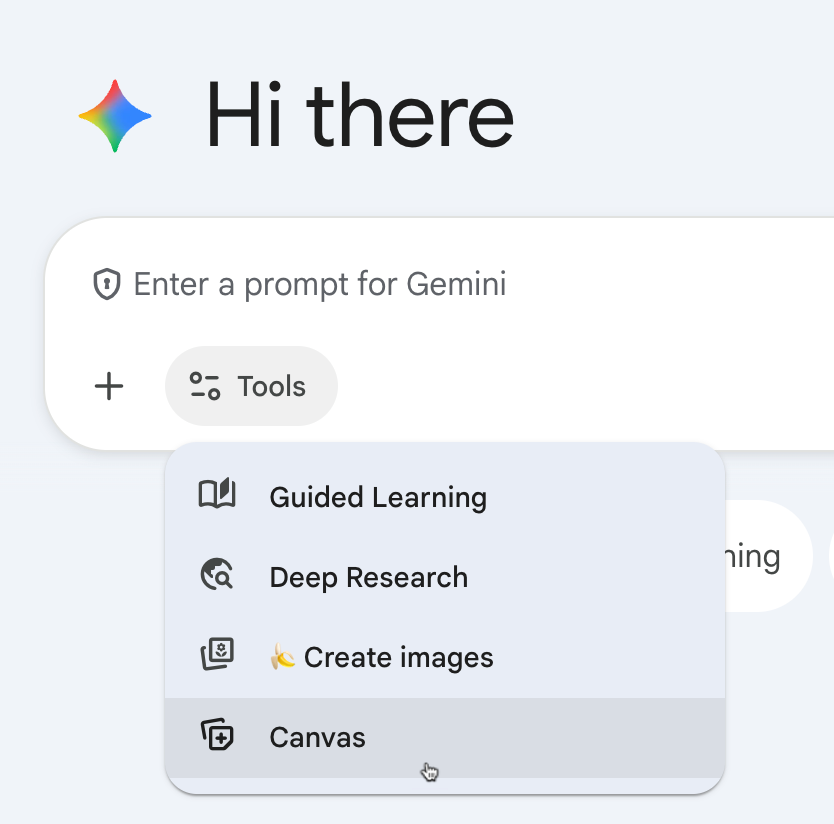
The first step is to open a new tab and go to gemini.google.com. In the prompt window, use the tools option to select “Canvas.” The presentation is created in the Canvas to allow you to review the presentation before sending to Google Slides.
TemplateTab by AliceKeeler

Collects NO User Data
Loved by millions! This FREE Add-on for Google Sheets™ allows you to duplicate a graphic organizer within a spreadsheet for each student on your roster.
Quickly create tabs!!
TemplateTab allows you to have all students in the same Google Sheets™.
Or simply perform record keeping for each student in your class, with each student having a named tab.
Generating Content for the Presentation
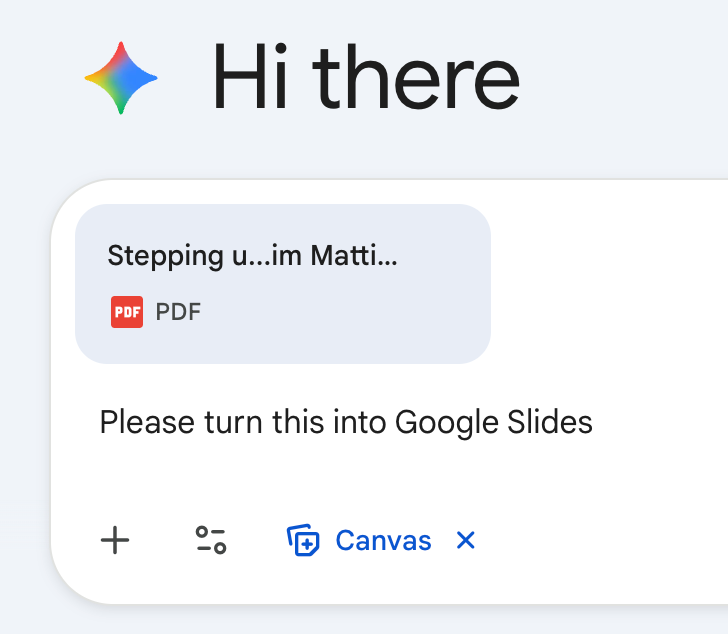
“Make me a presentation” is obviously not going to be a great presentation. Even “Please make a presentation about digital literacy” will probably be pretty mediocre. To improve the quality of the content in your presentation either upload your documents or engage Gemini in a conversation about the topic at hand. Then ask Gemini to please create a presentation based on the conversation or from the uploaded documents.
Continue the Conversation
The presentation creation is not the end of the conversation. You can look through the presentation before sending them to Google Slides. In the prompt window, clarify information or provide additional information to allow Google Gemini to adjust your slides.
Change the Design
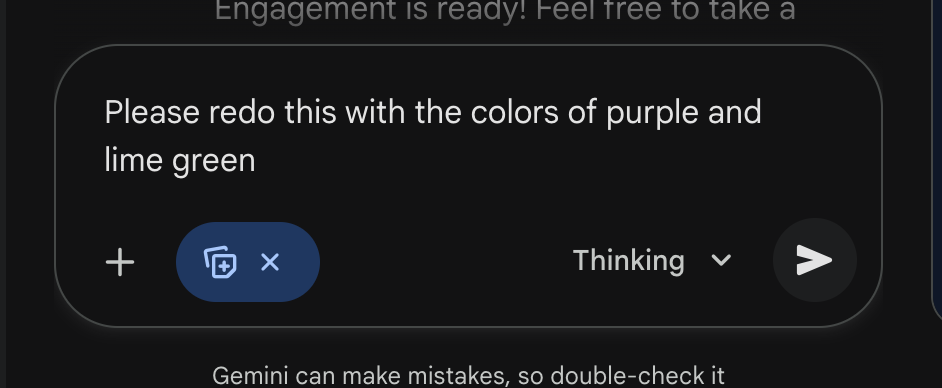
You can also prompt Google Gemini to modify the design.
Export to Google Slides
Once you are happy with the slides content and design, use the “Export to Slides” button in the Canvas. This will convert the presentation to Google Slides. Look for a black flag in the bottom left inviting you to “Open slides.” You can also find the presentation in your Google Drive.

Editing Your Google Slides
Now that my presentation is in Google Slides I have full editing rights to perfect the slides. Gemini gave me something to start with, and now I can simply edit and share the Slides to make them mine.
Tips for High Quality Presentation Slides
While Gemini excels at content generation and organization, it’s vital to remember that AI is not inherently trained on the principles of effective presentation design for human learning. Its primary goal is often to generate comprehensive or aesthetically pleasing content, which can sometimes conflict with pedagogical best practices rooted in cognitive science.
Address Cognitive Load Theory
AI might generate slides with too much text or too many ideas. Remember that effective learning slides minimize cognitive load by focusing on one key idea per slide and using minimal text. You’ll need to heavily edit Gemini’s output to strip down text and simplify concepts.
Apply Multimedia Learning Principles
AI might suggest visuals, but it won’t necessarily ensure they are placed optimally (e.g., text labels directly next to diagram parts) or that they truly enhance understanding rather than just decorate.
Shift from Information Dump to Engagement
AI can generate information, but it doesn’t instinctively know how to create slides that promote active learning, discussion, or critical thinking. You’ll need to transform informational slides into prompts for interaction.
Educator AI Assistant

Collects NO User Data
Use AI to create lesson plans, rubrics, newsletters, anything you want.
Educator AI Assistant is different by collecting ZERO data. Shows you the prompt and allows you to edit and share.
Runs locally in your own Google Sheets™.
Fully transparent and customizable.
Created by AliceKeeler
Best Practices for Using Gemini to Create Learning-Centric Slides
Start Lean, Not Bloated: Use Gemini for generating initial ideas, outlines, and core content, but expect to heavily edit down its output. Think of its first draft as an exhaustive resource from which you will carefully select and condense.
Focus on Visuals (You Choose!): After Gemini provides content suggestions, actively seek out powerful, simple visuals that convey the core message of each slide. Don’t just accept Gemini’s visual suggestions; curate them intentionally.
Integrate Interaction: Design specific slides yourself that are dedicated to questions, polls, think-pair-share activities, or quick writes. Gemini can’t anticipate these crucial pedagogical moments.
Emphasize Speaker-Led Explanation: Remember that your slides are a visual aid for your explanation, not a script. If Gemini gives you paragraphs of text, condense them to bullet points or even single words that you will elaborate on verbally.
Review Through a Pedagogical Lens: Before presenting, review every slide with questions like:
“Does this slide have too much text?”
“Is the main idea clear and singular?”
“Does this visual truly enhance understanding?”
“How can I make this slide prompt student thinking or discussion?”
Include Pedagogy in your Prompt
If you want your presentation to include interactivity, ask Gemini to include this when creating the presentation slides. The more information you provide Google Gemini about the topic, the slide design, and the pedagogy you want to utilize the better your preliminary presentation will be.
Sample Prompt
Act as an expert instructional designer and curriculum specialist, creating an outline and concise content suggestions for a Google Slides™ presentation.
**TOPIC:** [Insert your specific topic here, e.g., The 5 Steps of the Water Cycle]
**AUDIENCE:** [Insert grade level/subject, e.g., 7th Grade Science]
**GOAL:** [Insert clear learning objective, e.g., Students will be able to describe the process of cellular respiration and its purpose.]
**PRESENTATION LENGTH:** [Insert desired time, e.g., 20 minutes of instruction]
**STRICT PRESENTATION DESIGN CONSTRAINTS (Apply to ALL Slides):**
1. **Strictly Minimal Text:** Do not write paragraphs or full sentences. All content must be concise, using short phrases, single words, or bullet points (maximum 4 bullets per slide). This is to enforce a **Speaker-Led Explanation**.
2. **One Core Idea:** Each slide must cover only **one core concept** to keep the focus singular and reduce cognitive load.
3. **Visual Focus:** For every content slide, suggest a single, powerful, and simple visual concept that reinforces the idea, rather than just decorating it. (E.g., “Suggest a simple diagram showing the relationship between glucose and ATP.”)
**REQUIRED SLIDE TYPES:**
* **Introductory Slides:** 1-2 slides for the title, goal, and engagement hook (Engage).
* **Core Content Slides:** 6-8 slides covering the main steps/concepts (Explore/Explain).
* **Interactive Slides:** Include a minimum of **two** slides specifically designed for **Integrate Interaction** and student reflection.
* *Design one slide as a **Think-Pair-Share** prompt.* Use an open-ended question that requires critical thinking.
* *Design one slide as a **Quick Write/Poll** activity.* Suggest a question that can be answered quickly via a link to a Google Form™ or in a notebook.
**OUTPUT FORMAT:**
Provide the output as a numbered list where each number represents a single slide. For each slide, include:
* **Slide Title:** (Short and descriptive)
* **Slide Content:** (Strictly minimal text/bullet points)
* **Visual Suggestion:** (Specific, simple visual concept)
Try a Google Gem
A Gem is a preset prompt. This allows you to prompt with only the topic, content information, grade level, and other lesson specific information.
You’ll still need to request the outline is turned into a presentation using the Canvas.
Try Google Gemini to Draft Your Google Slides
Google Gemini is an incredible assistant for battling the blank page and accelerating your presentation prep. It can generate outlines, draft text, and offer creative directions in minutes. However, the artistry and science of designing truly effective slides for student learning still reside with you, the educator.
By combining Gemini’s efficiency with your expert understanding of cognitive science and pedagogical principles, you can create engaging, effective, and truly impactful presentations that foster deeper student learning.



