





If someone has emailed you, in Gmail, a PowerPoint and you want to be collaborative, you can open the PowerPoint right in Google Drive. No office software required.
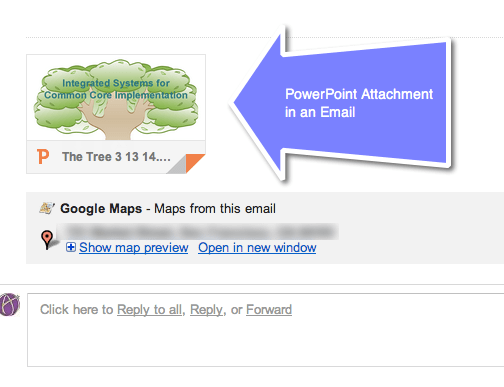
Find the Attachment
The attachment will be at the bottom of your Gmail. You will recognize the file format at PowerPoint by the orange P in the bottom left of the icon.
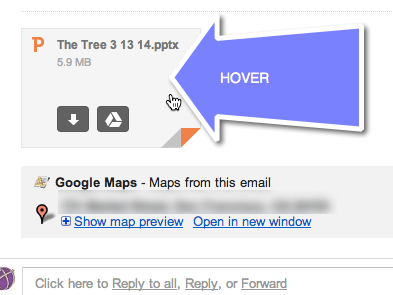
Hover
Hover over the attachment to notice different options. You can download the PowerPoint by clicking on the down arrow. You can alternatively save the PowerPoint as a PowerPoint into your Google Drive by clicking on the drive icon.
Click on the Attachment
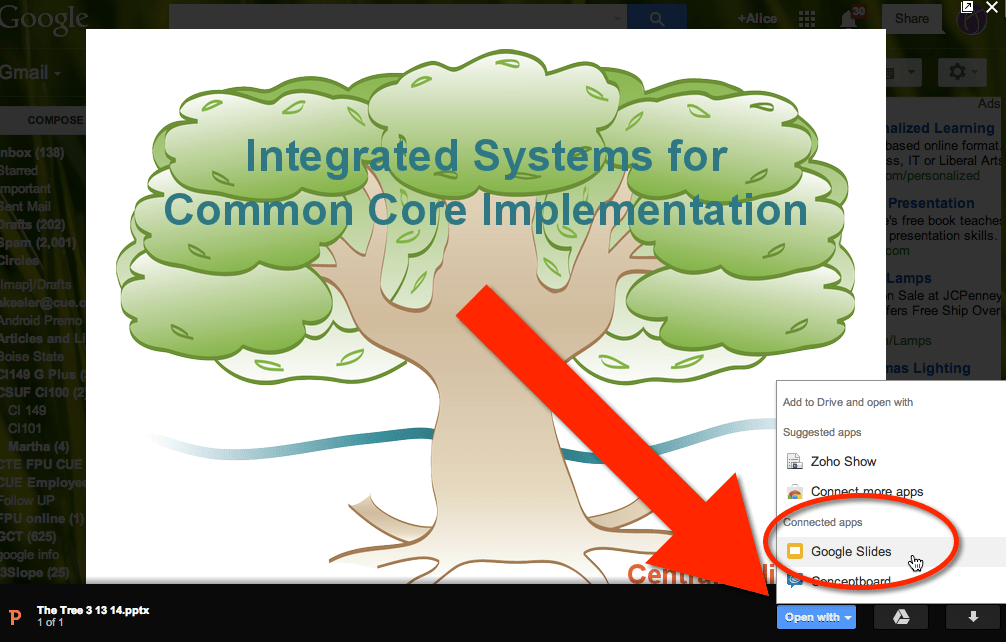
Clicking on the attachment, not the icons, opens the PowerPoint in preview mode. You can scroll through the slides without launching the PowerPoint in Office or in Google Drive.
Notice down in the bottom right is a blue button to “Open With.” Choose to open with “Google Slides.” This will create a copy of the PowerPoint and convert it to Google Slides presentation. This is now able to be edited and shared.
Conversion
Is the conversion perfect? No, but overall it is pretty darn good. I have found I need to edit a few slides to make sure the text boxes are the right size. Frequently I just leave it the way it converts it, the conversion is fairly decent.





4 thoughts on “Converting a PowerPoint Attachment to Google Slides”
Yes, the text boxes are nearly always the culprits that need fixing… but for the most part I have had great success using a similar method (never knew until now I could do this from my email. Thanks for that!)
thanks Tim Haston
Can you use animation in Google slides? I tried to convert an animated PP and it didn’t work. My students also couldn’t figure out how to animate slides.
Right click on an element in Google Slides to choose animation. Animations do not convert, but can be added.