






The constant clicking between your gradebook and student work drains your energy. Teachers are digital multitaskers who need to see information side by side to be effective. Google Chrome has a new feature called Split View that solves this problem instantly.
Split View Feature in Chrome
Split view allows you to merge two tabs into one single window. You can see your lesson plan and your AI tool at the same time. You stop toggling. You start working.
What Is Split View
Split View is a built in feature for Google Chrome. It lets you dock two separate websites within a single browser tab. This is not the same as having two windows open on your desktop. It happens entirely inside the browser. You have one tab at the top of your screen that contains two active websites. You can scroll both. You can type in both. You can pin the combined tab just like a regular one. It turns your browser into a dual monitor setup on a single screen.
Built In
You do not need to install an extension to use this. You just need to know how to use the right click menu on your tabs.

Delivering high-quality content, tools, and support for reading comprehension
ReadWorks is a free, research-based website designed to support educators in teaching reading comprehension across grades K–12. It provides a rich library of high-quality, standards-aligned instructional content.
Article-A-Day, helps students build knowledge and vocabulary in just 10-minutes a day.
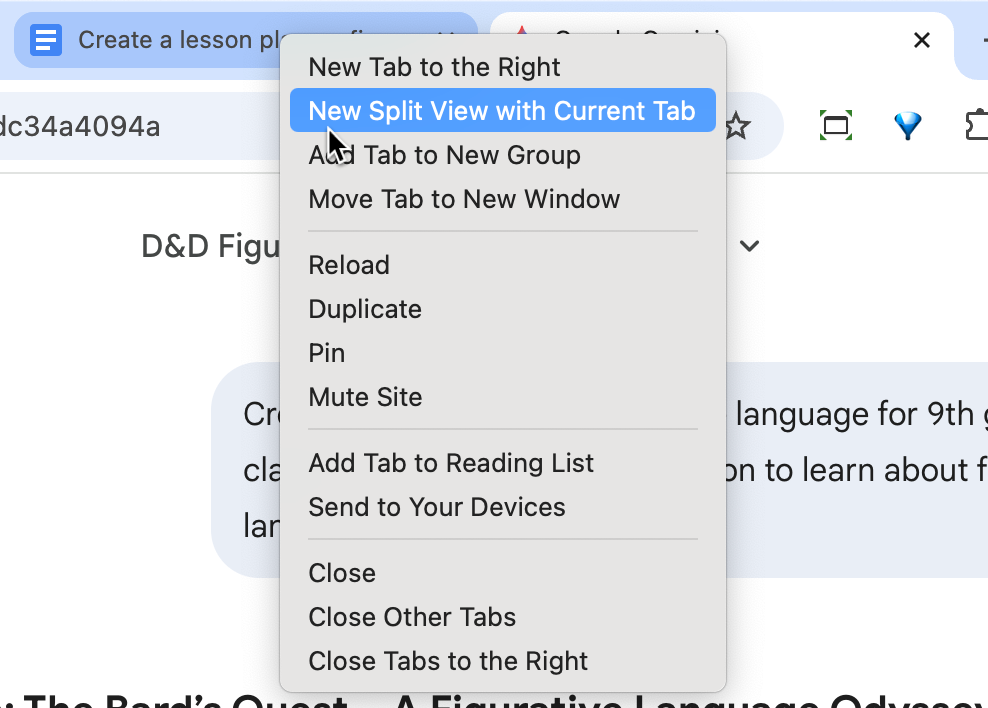
New Split View With Current Tab
You already have a lot of tabs open. You are wishing one of the other tabs you have open was side by side with your current tab. Such as Google Gemini or your gradebook. Right click on the OTHER tab and choose “New Split View with Current Tab.”
If you right click on your current tab and choose “Add Tab to New Split View” the side by side view will give you the option to choose which tab to appear in the right hand side.
Arrange Split View
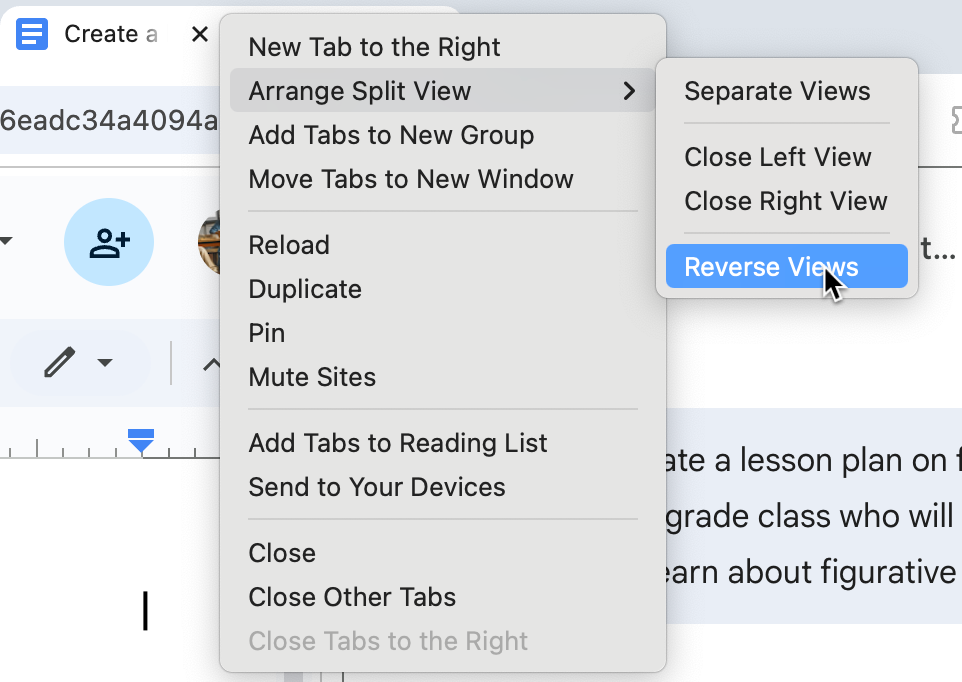
Once you have two tabs combined you can manage them. Right click on the split tab to see the “Arrange Split View” menu. This gives you control over how the tabs look. Choose to “Reverse Views” to switch the left and right sides,
or “Separate Views” to put the tabs back as they were.
Using Split View in the Classroom
As a teacher, or a student, there are so many reasons to take advantage of split view.
The Gradebook Transfer
Transferring grades is tedious. Open your quiz results in one tab and your official gradebook in the other. Split them. Scroll down the results list and type the grades directly into the gradebook. You reduce errors because you see the student name in both windows at once.
The Design Studio
Creativity requires inspiration. When designing slides or newsletters open a design gallery on the left and your editing tool on the right. You can look at color palettes or layouts and apply them to your work immediately. This removes the friction between seeing an idea and using it.
The Feedback Guide
Grading essays requires focus. Open the student essay on the left and your rubric or Learning Management System on the right. You can read the work and reference the standards simultaneously. This makes your feedback more specific and aligned with the rubric.
Educator AI Assistant

Collects NO User Data
Use AI to create lesson plans, rubrics, newsletters, anything you want.
Educator AI Assistant is different by collecting ZERO data. Shows you the prompt and allows you to edit and share.
Runs locally in your own Google Sheets™.
Fully transparent and customizable.
Created by AliceKeeler
The Video Notebook
We often watch videos to learn. Open a YouTube video on the left and Google Keep or Docs on the right. You can type your notes while the video plays. You do not have to minimize the video or switch tabs to write down a thought.
The Translation Station
For students needing language support, open the student text on the left and Google Translate on the right. You can copy a phrase you do not understand and paste it into the translator. You can write your feedback in English and translate it to the student’s home language quickly.
The Collaborative Command Center
Group work can get messy. Have students open their group project rubric on the left and their shared presentation on the right. They can check their work against the criteria as they build. This keeps the collaboration focused on the learning goals.
The Parent Communication Hub
Accuracy matters when emailing parents. Open your student information system on the left and your email on the right. You can reference specific data points like attendance or grades while you type. This ensures your communication is clear and fact based.
The Research Compare And Contrast
Deepen analysis skills with this strategy. Ask students to open two different articles about the same topic. Put one on the left and one on the right. Have them highlight differences in the reporting. The visual proximity makes it easier to spot bias or conflicting details.
The Digital Textbook Reader
Students often struggle to answer questions based on a text. Have them open their digital textbook on the left and their assignment document on the right. They can refer back to the text to find evidence for their answers without losing their place in the assignment.
Student Engagement Strategy
Students struggle with digital organization. They often have too many tabs open and get distracted. Teach them to use Split View to create a focused workspace.
Tell them to open their reading assignment on the left and their response journal on the right. This visual setup signals to their brain that it is time to work. It reduces the temptation to open unrelated tabs because the screen feels full. You give them a tool to manage their own attention.





